
1. Go to "Company Profile Settings", then click "Price Category Settings" in the secondary menu on the left, or scroll directly to the Price Category Settings section. 2. Click "Add Price Category" at the top right of that section. A dialog appears. 3. Enter a name in "Category Name" (required), and fill in "Remarks" if needed. 4. Under "Price Formula", choose a role: the first category is usually set to "Set as base category"; other categories use "Calculate from base"; choose "Not included" if you do not want it in the formula. 5. After choosing "Calculate from base", select % or amount in the "Adjustment" row, then enter the value. A negative number means cheaper than the base; for example, -15% means a 15% discount (85% of the base). 6. Set "Rounding" (for example, round half up) and "Rounding digits" (for example, integer (#)), then choose whether MOQ should "Follow base" or be "Fixed". 7. Check the result against the example at the bottom of the dialog (for example, base 1000 → 850), then click "Save" at the bottom right. Click "Cancel" if you do not want to save.
Example: In the demo account (Dingli Bicycle Parts Co., Ltd.), "Test price" is the base, and "Second test price" is base -15%, rounded to the integer, with MOQ following the base. After saving, the [Formula] column in the list shows "Base −15%, MOQ follows base".
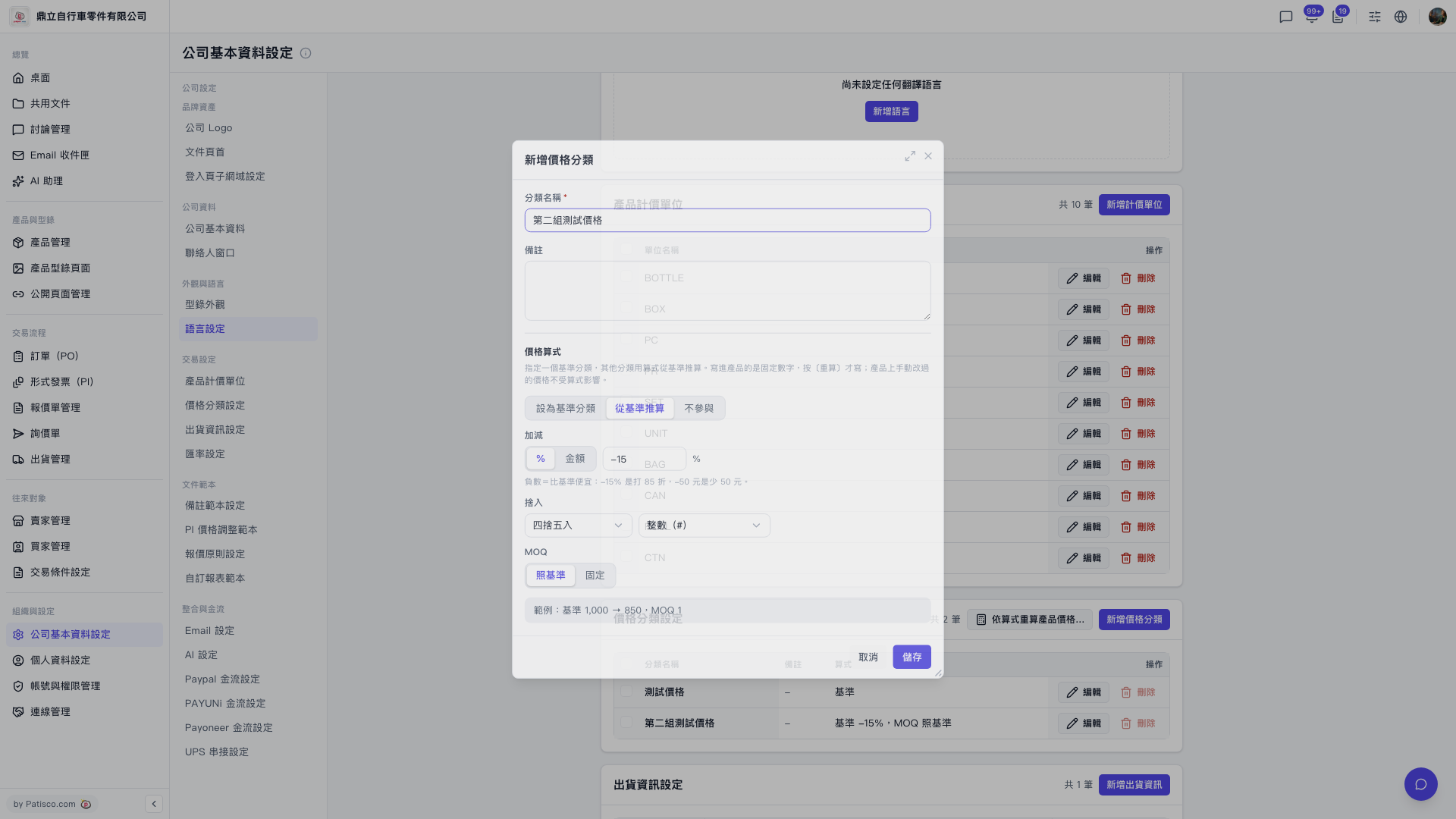 V5 新桌面版|公司基本資料設定(新增價格分類對話框)