
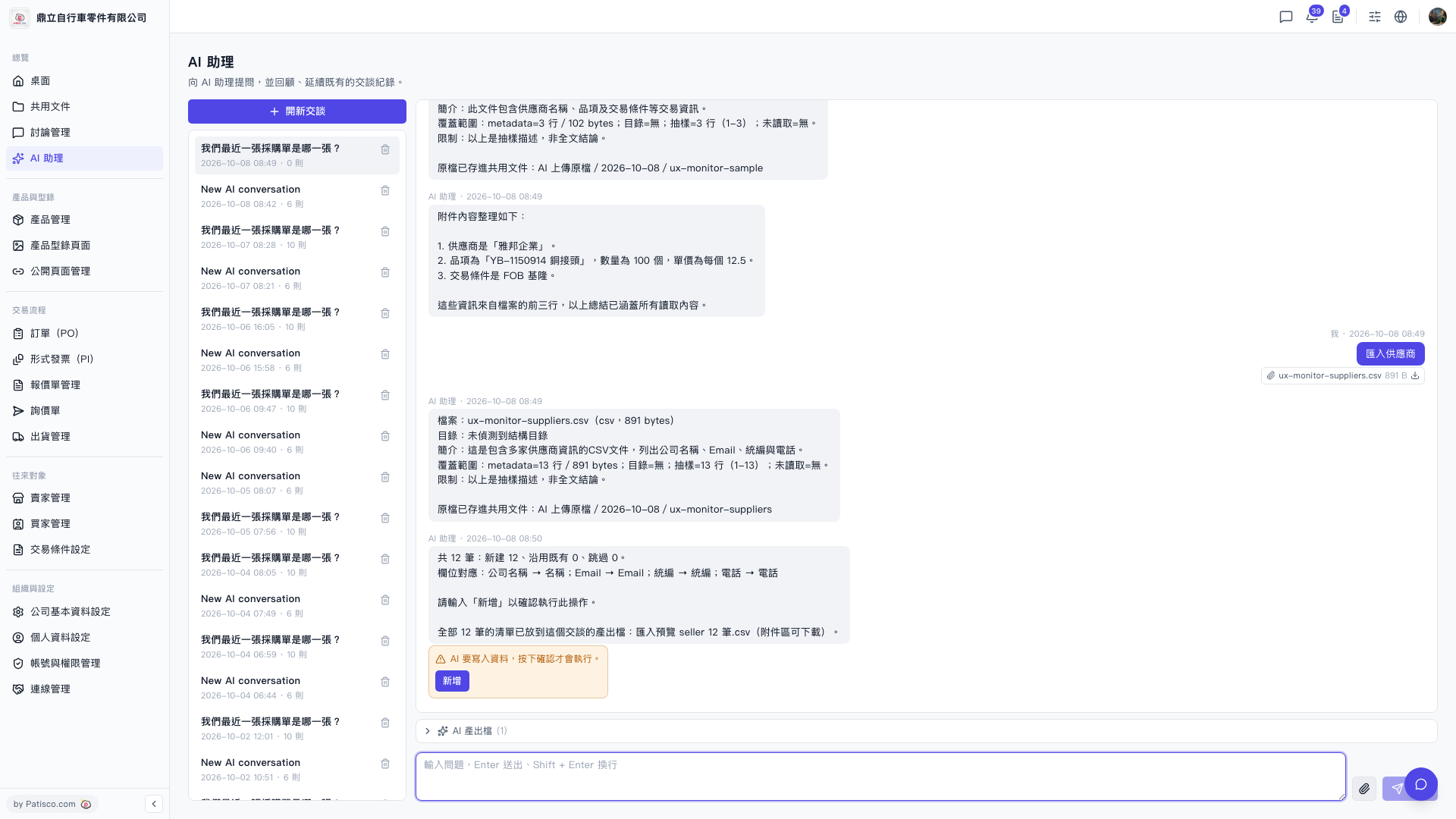
1. Click "AI assistant" on the left sidebar to open the AI chat page. 2. Click "New Chat" in the top left corner to start a new conversation. 3. Click the "Attachment (paperclip icon)" on the left side of the input box and upload your supplier CSV file. 4. Type a command in the input box (for example, "Import supplier data") and press Enter or click "Send (paper plane icon)" on the right. 5. The AI assistant will analyze the file and display field mapping (such as "Company name → Name", "Email → Email", "Tax ID → Tax ID", "Phone → Phone") and the expected number of new records. 6. After confirming the parsing results are correct, when a warning appears in the conversation area saying "AI is about to write data, click confirm to execute", click the "Add" button to confirm execution. 7. After import is complete, click the "Download icon" to the right of the attachment "ux-monitor-suppliers.csv" in the attachment area to download the result CSV produced by AI for backup.
You can ask like this: "Import suppliers (12 rows csv)" The AI will respond like this: "Total 12 records: 12 new, 0 existing, 0 skipped. Field mapping: Company name → Name; Email → Email; Tax ID → Tax ID; Phone → Phone. Please type 'Add' to confirm this operation."
 V5 新桌面版|AI 助理