
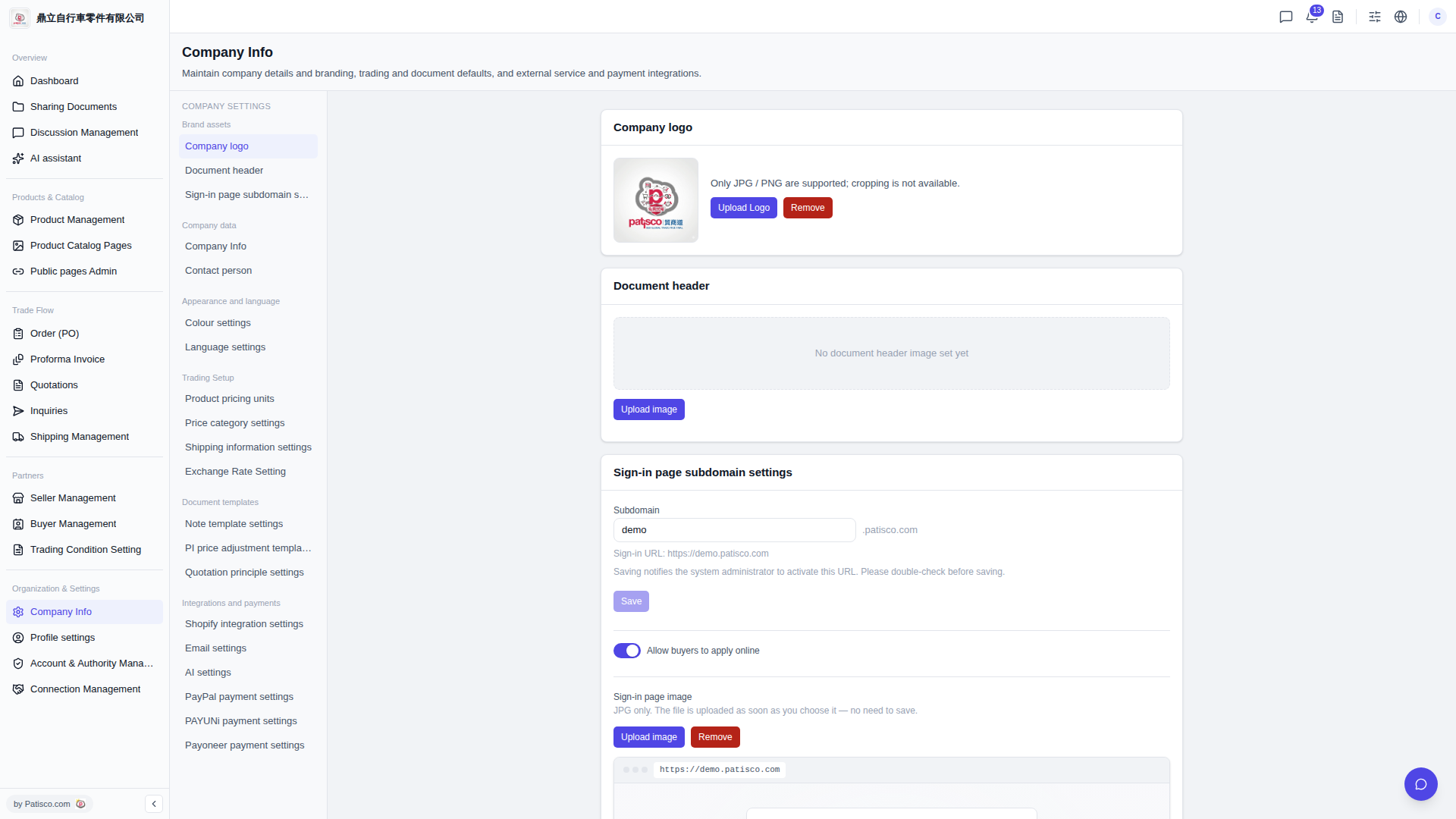
After entering the Company Info page, you can configure the following items: 1. Click "Organization & Settings" > "Company Info" in the left sidebar. 2. [Company Logo] Click "Upload Logo" in the Company logo section to upload a JPG or PNG image; to replace an old logo, click "Remove" first and then upload a new one. 3. [Document Header Image] Click "Upload image" in the Document header section; after uploading, it will be displayed at the top of documents such as quotations and purchase orders. 4. [Sign-in Page Subdomain] Enter a subdomain name in the Subdomain field. The system will automatically generate the complete Sign-in URL (format: https://[subdomain].patisco.com). After confirming, click "Save" to save it. The system will notify the admin to enable it. 5. [Allow Buyers to Apply Online] Toggle the "Allow buyers to apply online" switch as needed. When enabled, buyers can apply for an account themselves on the login page. 6. [Sign-in Page Background Image] Click "Upload image" in the Sign-in page image section to select a JPG image. After selection, it will be uploaded immediately without needing to press save.
 V5 新桌面版|Company Info