
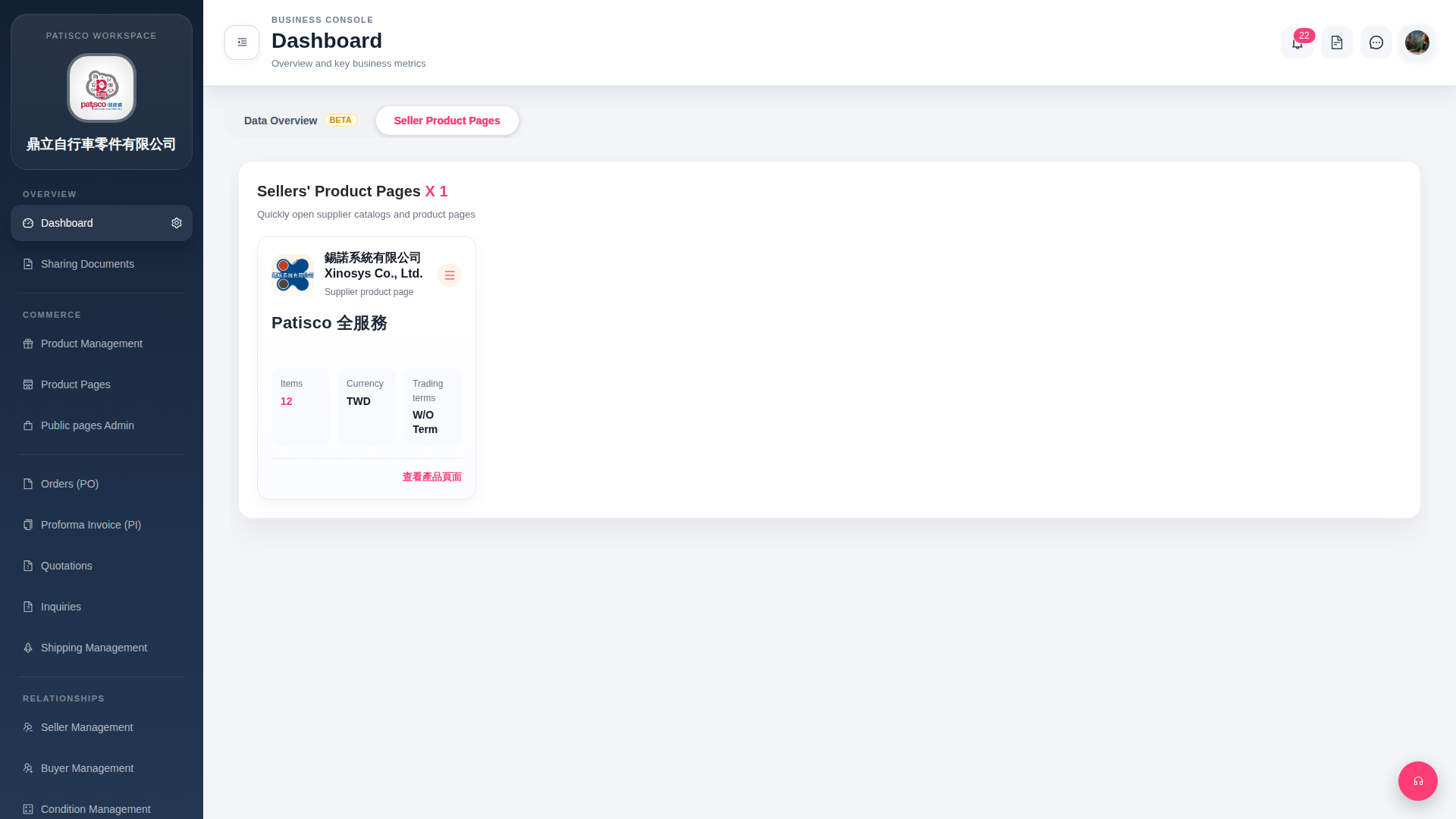
1. After login, the system automatically enters the Dashboard page. 2. Click the "Seller Product Pages" tab at the top of the page (currently selected by default). 3. The page will display all linked supplier cards, with each card showing the supplier name, item quantity (Items), currency (Currency), and trading terms information. 4. To browse a supplier's complete product catalog, click the red "View Product Page" link at the bottom right of the card. 5. To perform other operations on a supplier (such as editing or deleting), click the hamburger menu icon (three lines) at the top right of the card to display more options.
 G4 桌面版|Dashboard