
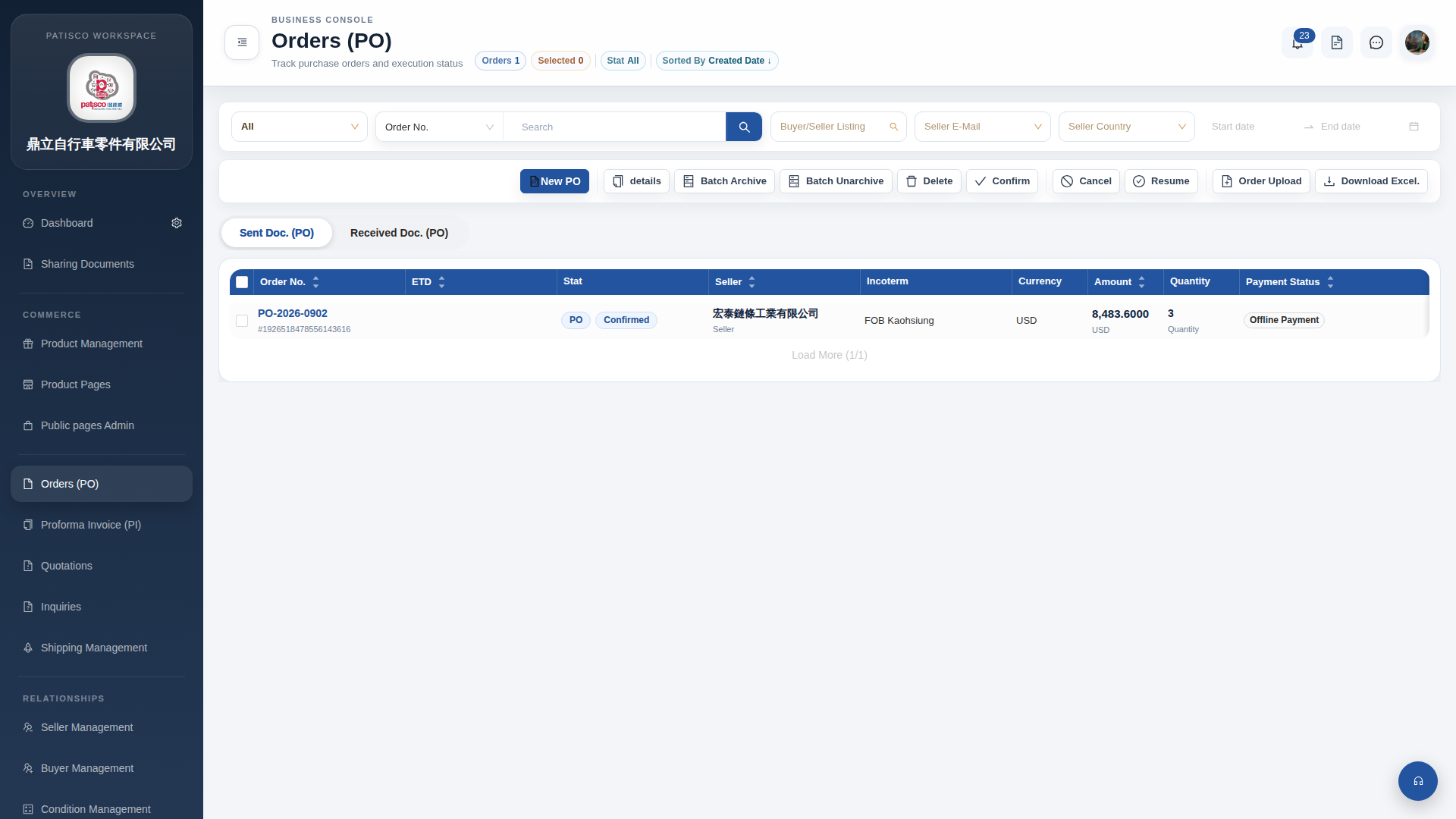
1. Click "Orders (PO)" in the left sidebar to enter the purchase order list page (Orders PO). 2. After entering, the toolbar provides the following main operations: - "New PO": Create a new purchase order - "details": View detailed information of the selected order - "Confirm" / "Cancel" / "Resume": Confirm, cancel, or resume an order - "Batch Archive" / "Batch Unarchive": Archive or unarchive in batches - "Delete": Delete selected orders - "Order Upload": Batch upload order data - "Download Excel": Export order list as an Excel file 3. At the top of the page, there are two tabs "Sent Doc. (PO)" and "Received Doc. (PO)" for switching between viewing sent or received purchase order documents. 4. Click the order number in the list (e.g., PO-2026-0902) to directly open the detailed page of that order.
 G4 桌面版|訂單管理 (Orders PO)