
1. In the left sidebar, click "Company Profile Settings" under "Organization & Settings". 2. In the second-level menu, click "Price Category Settings" under "Trading Condition Setting", or scroll down to the "Price Category Settings" section. 3. Click "Add price category" at the top right of the section. 4. Enter a name in "Category name" (required), for example "第二組測試價格". Fill in "Note" if needed. 5. For "Price formula", select "Derive from base". 6. For "Adjustment", select % and enter -15. A negative number means cheaper than the base, so -15% is a 15% discount (85% of the base price). 7. For "Rounding", select "Round half up" and "Integer (#)". 8. For "MOQ", select "Same as base". 9. Check the result in the example at the bottom of the dialog (for example, base 1000 → 850, MOQ 1). If it looks right, click "Save" at the bottom right. If you do not want to save, click "Cancel" next to it.
Note: The demo account (鼎立自行車零件有限公司) is set up this way: 測試價格 = base, 第二組測試價格 = base −15%, rounded to an integer, MOQ same as base.
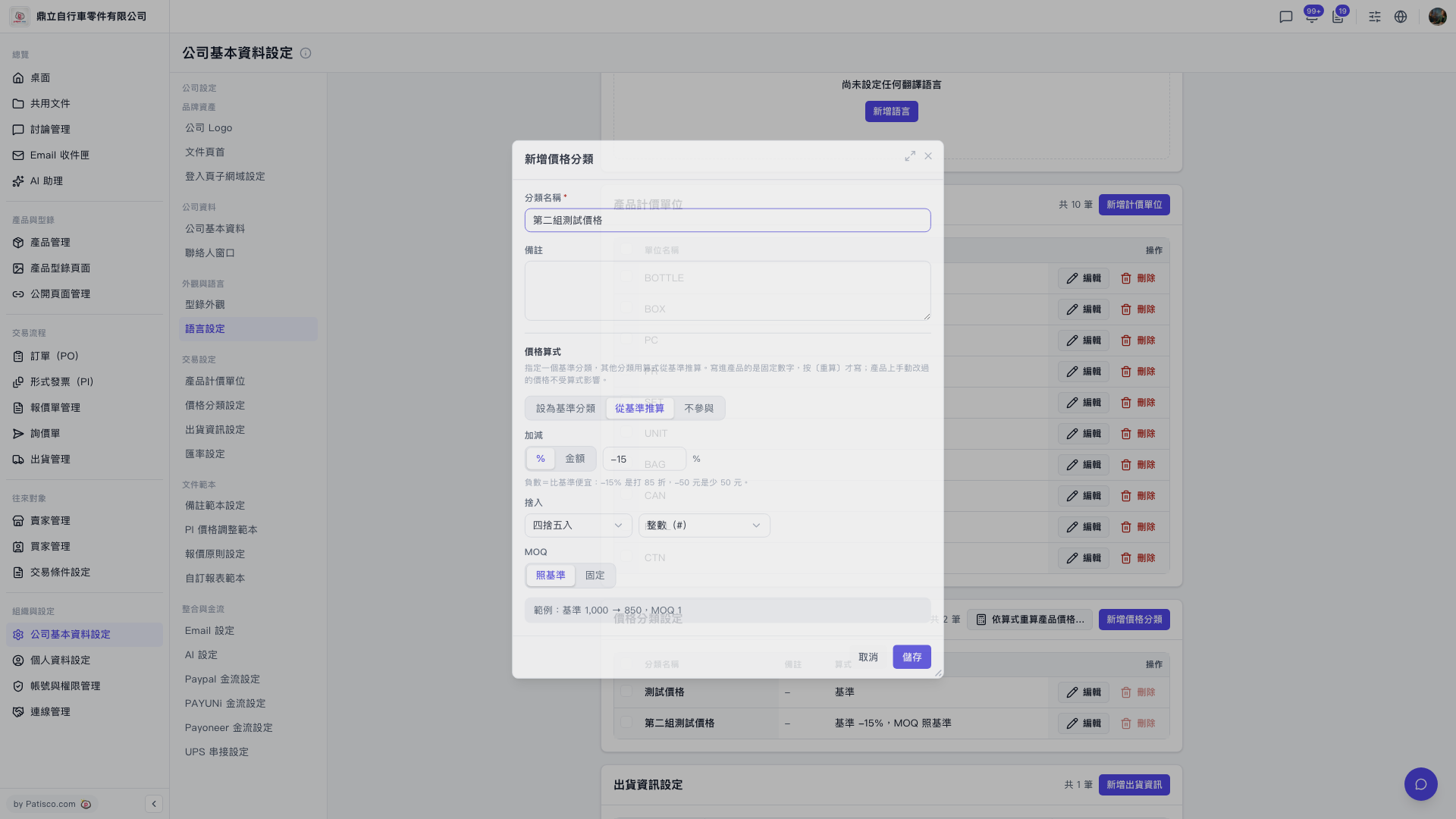 V5 新桌面版|公司基本資料設定(目前開啟「新增價格分類」對話框)