
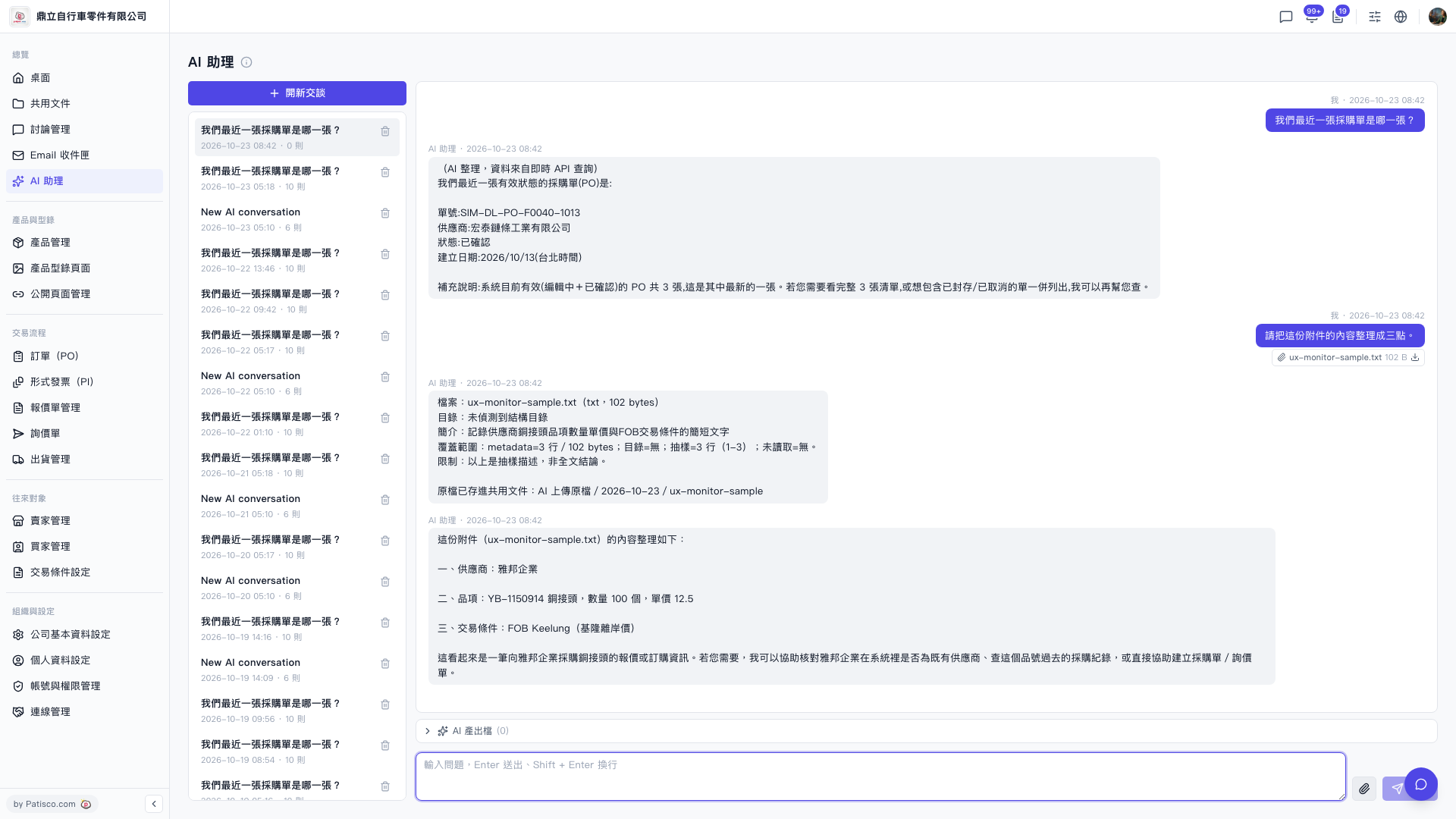
1. Go to the "AI assistant" page, then start a new conversation or select an existing one. 2. Click the paperclip (attachment) icon on the right side of the input box and upload the file you want organized (for example, ux-monitor-sample.txt). 3. Type your request in the input box, then press Enter or the send button. 4. Read the AI's reply in the conversation area. If needed, click the download icon next to the attachment in the conversation to download the uploaded attachment. If the AI generated any files, expand "AI output files" above the input box to view them (currently showing 0).
You can ask: "Please organize the content of this attachment into three points." The AI will reply like this: It first describes the file overview (file name, size, sampled range, and a reminder that this is a description based on a sample, not a conclusion about the full text), then organizes it into three points: the supplier is 雅邦企業, the item is YB-1150914 copper fitting (quantity 100 pcs, unit price 12.5), and the trading condition is FOB Keelung. Finally, it also asks whether you want help verifying the supplier, checking past purchase records, or creating a PO or inquiry.
 V5 新桌面版|AI 助理