
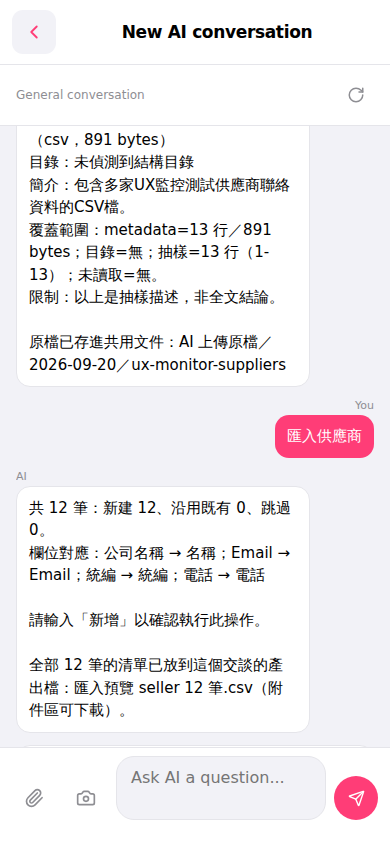
1. Open the Patisco mobile version and go to the "New AI conversation" page. 2. Click the "attachment (paperclip icon)" at the bottom left of the input field to upload the CSV file containing supplier data. 3. Type "import suppliers" in the input field, then click the pink round "Send" button on the right. 4. The AI will analyze the file and respond with field mapping (for example: Company Name → Name, Email → Email, Tax ID → Tax ID, Phone → Phone) and the number of records. Please confirm if it is correct. 5. After confirming it is correct, type "add" in the input field and click "Send" to confirm the import operation. 6. After the import is complete, download "Import Preview seller 12 records.csv" from the attachment area to confirm the import results.
You can ask the AI like this: "import suppliers" The AI will respond like this: "Import 12 suppliers: 12 newly created, 0 reused existing, 0 skipped. Field mapping: Company Name → Name; Email → Email; Tax ID → Tax ID; Phone → Phone. Please type 'add' to confirm this operation."
 手機版|New AI conversation