
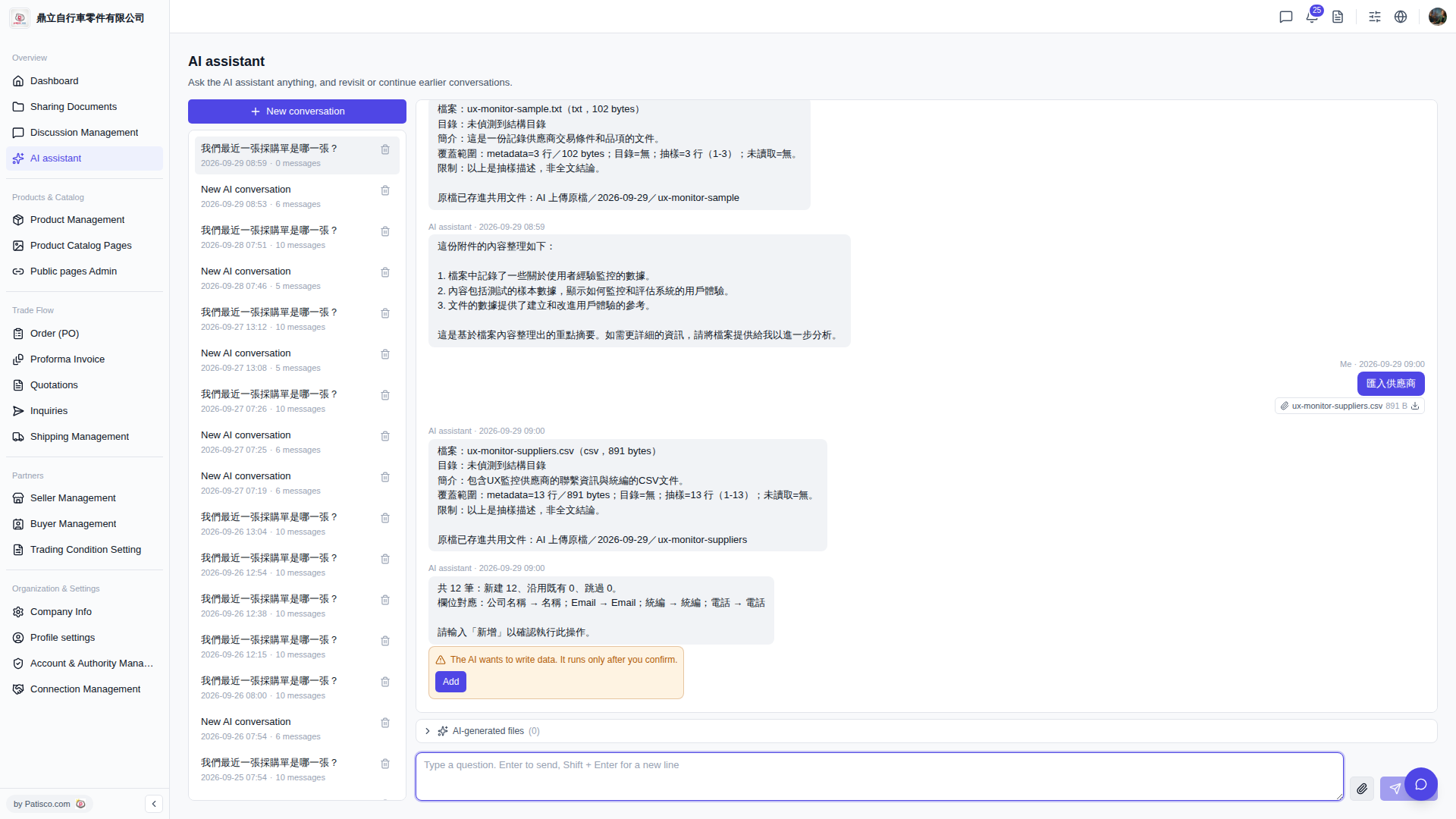
1. Go to the "AI assistant" page and click "+ New conversation" at the top left to open a new conversation. 2. Click the paperclip icon on the right side of the message input box to upload the supplier CSV file. 3. In the input box, enter a command (e.g., "Import suppliers"), then press Enter to send. 4. The AI will parse the file and display the field mapping results, for example: Company Name → Name, Email → Email, Tax ID → Tax ID, Phone → Phone, and the expected number of records to be added (e.g., 12 records). 5. After confirming the data is correct, an orange alert box will appear saying "The AI wants to write data. It runs only after you confirm." Click the "Add" button to complete the write operation.
You can ask like this: "Import suppliers" The AI will respond like this: "Total 12 records: 12 new, 0 reused, 0 skipped. Field mapping: Company Name → Name; Email → Email; Tax ID → Tax ID; Phone → Phone. Please enter 'Add' to confirm this operation."
Known situation: Currently, the AI response does not explicitly indicate the location of the AI-generated output files. If you need to review the original uploaded file, you can check the "AI uploaded files / date" folder. Please note that the "AI-generated files (0)" section at the bottom currently shows no output files.
 V5 新桌面版|AI assistant