
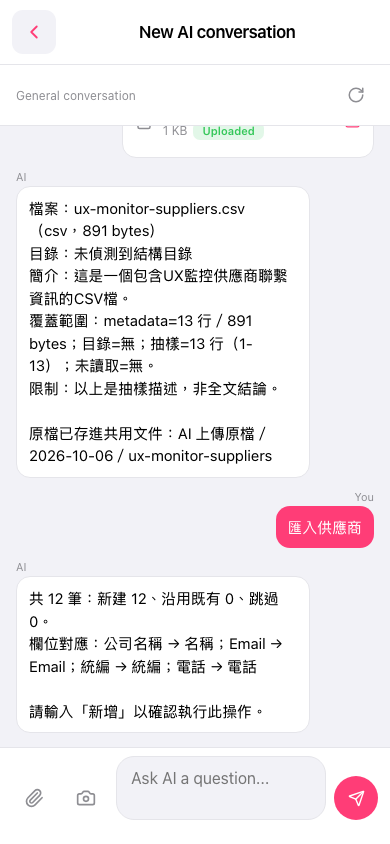
1. After typing "Add" and tapping the send button, the AI will immediately execute the import operation and write the supplier data from the CSV into the system. 2. Before typing "Add", please confirm that the field mappings and record count shown in the AI's response are correct (for example, "12 new, 0 existing, 0 skipped"). 3. If you notice the data is incorrect, you can tap the refresh icon (↺) in the top right corner before typing "Add" to reset the AI conversation and re-upload the correct CSV file to try again. 4. Once you send "Add" and receive an import completion confirmation, the data is already written into the system. Currently, there is no direct undo button on the screen, so please verify everything before importing.
Known limitation: The AI currently will not automatically explain where the output file is downloaded or saved. If you need to keep an import result record, please save it separately.
 手機版|New AI conversation