
1. In the left sidebar, click "Trade Flow > PO", and open the PO you want to work on from the list (for example PO-2026-0902). 2. Scroll down to the "Item list" section. 3. To edit an existing item, click "Edit" on the right side of that row, or click "⋯" to open more actions. 4. To add a new item, click "New item" at the top right of the item list and enter the new item yourself. 5. To use existing product data, click "Add item" and pick from the product database to add it to the PO. 6. To adjust which columns the table shows (currently 8/25) or the sorting, click "Columns / Sort" at the top right. 7. If you want to change the PO as a whole, click the blue-purple "Edit" at the top right of the page instead.
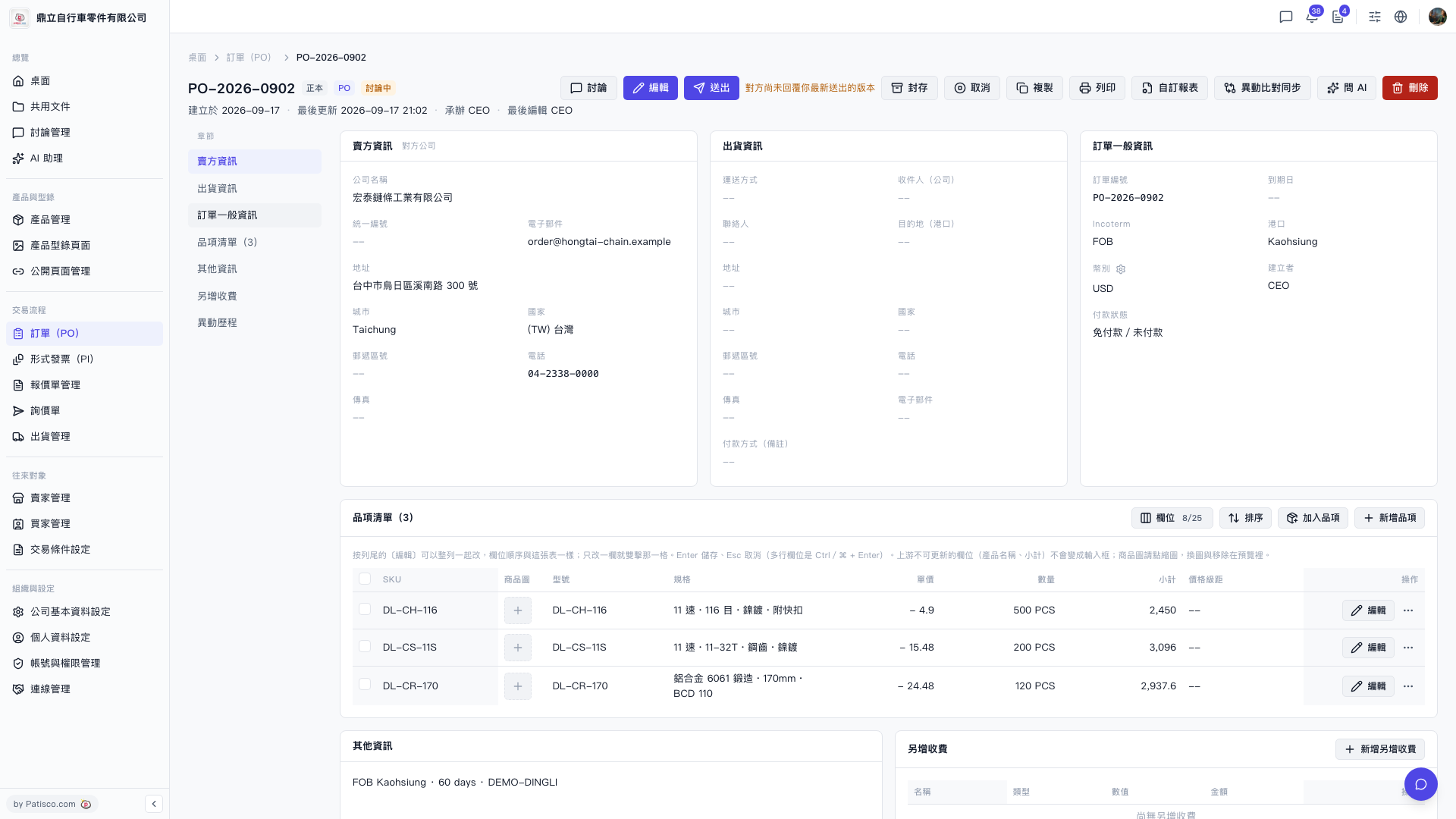 V5 新桌面版|PO-2026-0902(訂單詳情)