
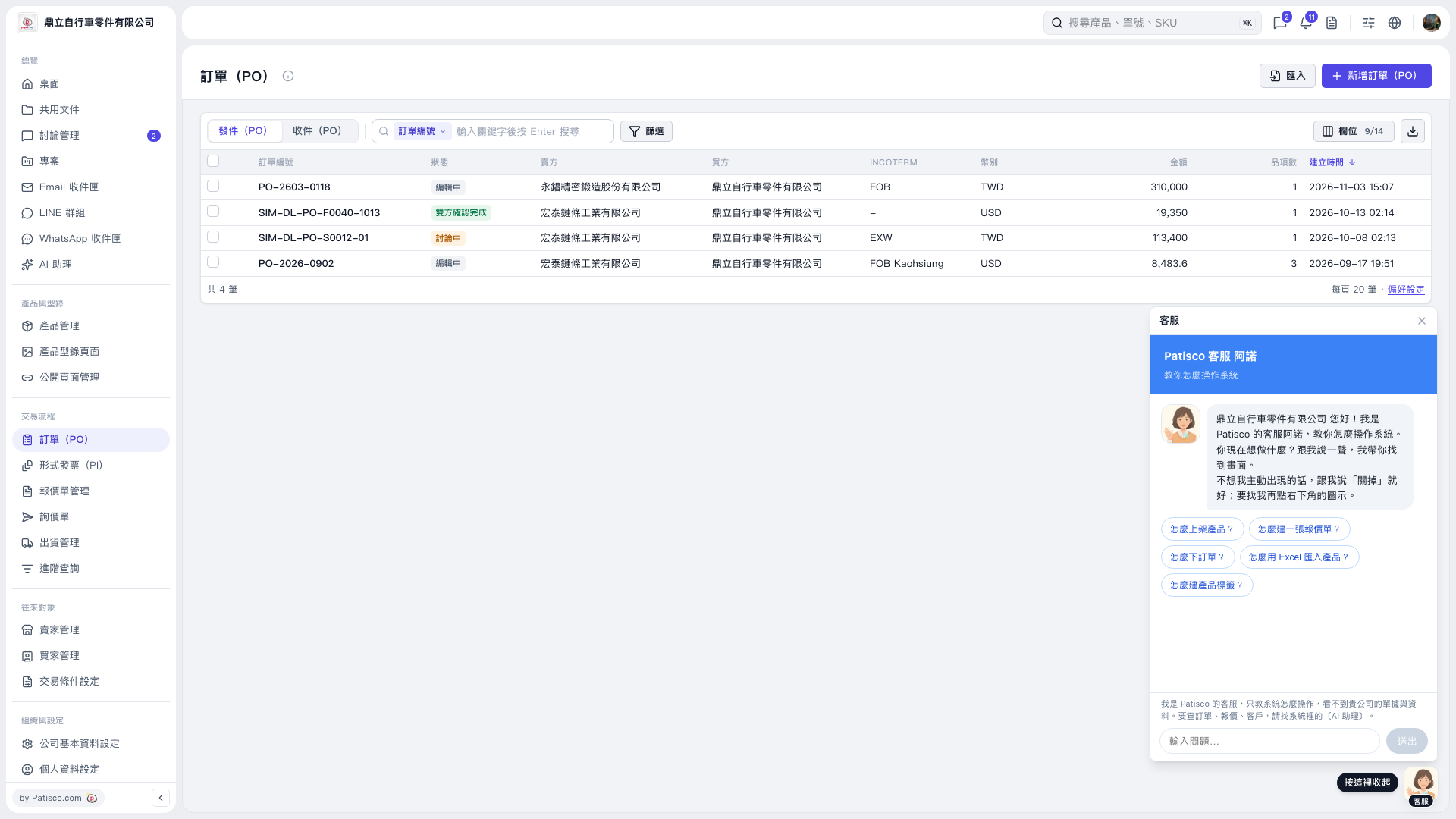
1. In the left sidebar, click "PO" under "Transaction Flow". 2. Use the tabs above the list to choose "Sent (PO)" (POs you issued) or "Received (PO)" (POs you received). 3. To find a specific PO, choose a search field in the search box above the list, enter a keyword (for example the PO number), and press Enter. You can also click "Filter" on the right to narrow the results. 4. To create a PO, click "New PO" at the top right, fill in the seller, buyer, INCOTERM, currency and items, then save. If you already have a file, click "Import" to the left of it. 5. To view or edit an existing PO, click its PO number in the list to open the detail page. In addition, "Columns" at the top right of the list lets you set which columns the table shows, and the download icon next to it exports the list data.
 V5 新桌面版|訂單(PO)