
1. Open "Preferences" and click "Appearance" in the tab bar at the top. 2. Theme: under "Theme", choose "Follow system", "Light", or "Dark". Font: use the font drop-down on the right to choose the interface font. 3. Desktop style: in the lower half of the page, choose "Default", "Mobile widgets", "Task list", "Monitoring panel", or "Business KPI" to change how the desktop home page is displayed. 4. Font size: at the very bottom of the page, drag the font size slider. It scales the whole screen proportionally. 5. To find a specific item, use "Search settings" on the right side of the tab bar and enter a keyword. If you need guidance, click "Step-by-step setup" at the top right. Changes are saved automatically. You do not need to click Save. The column display, order, and freeze settings in the "List" tab are also stored on your account.
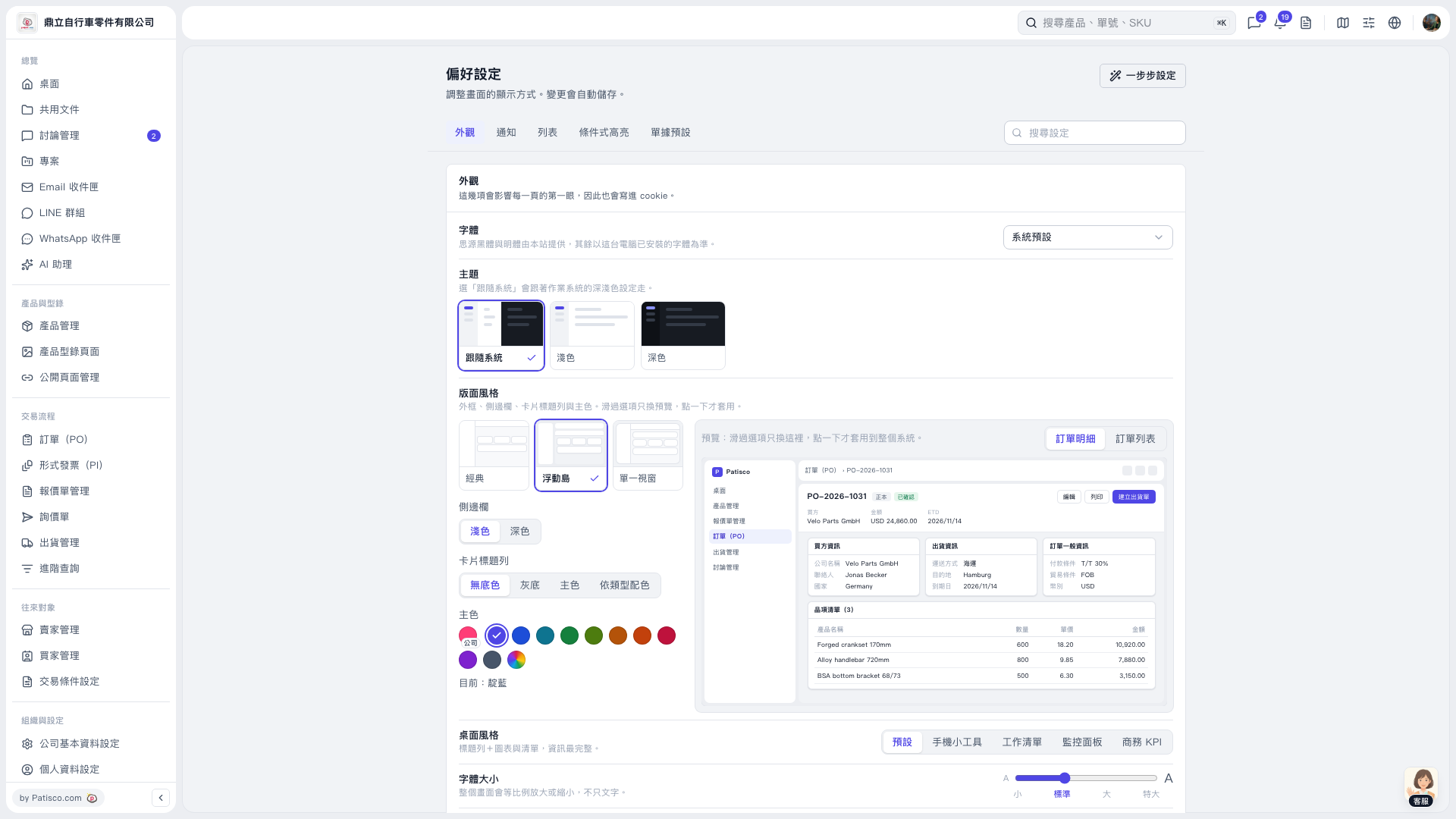 V5 新桌面版|偏好設定