
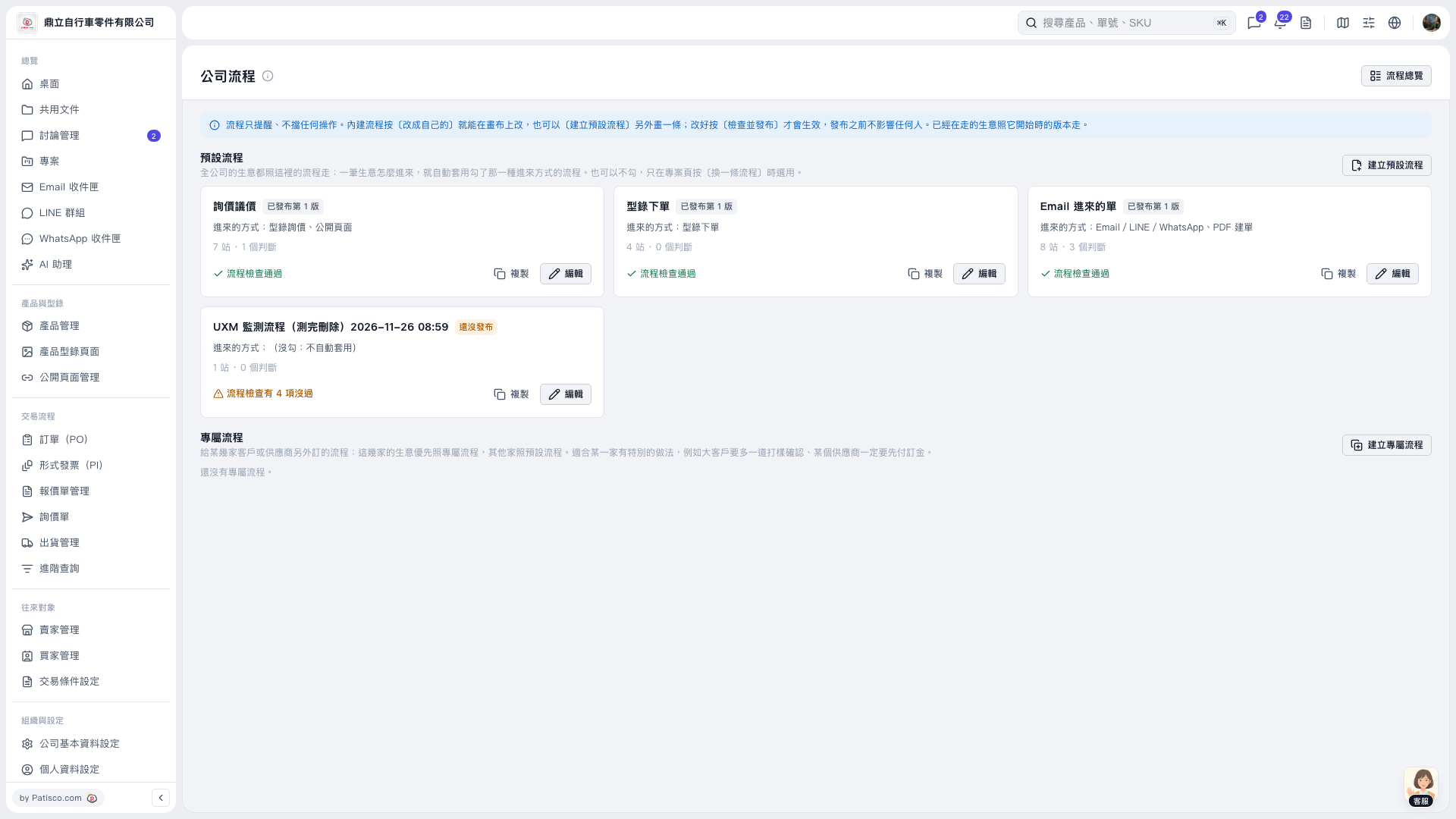
1. Open Company Workflow and click “Create Default Workflow” in the Default Workflows section. To edit an existing workflow, click “Edit” on its workflow card, then click “Make It Your Own” when prompted. 2. Select components on the left side of the canvas to add them to the workflow. For example, click “Manual Step” to add a stage, connect the workflow paths, and adjust the settings on the right. Drafts are saved automatically. The “Draft Saved” message confirms that the draft has been saved. 3. In the Full Workflow settings, select “Default Workflow” or “Dedicated Workflow,” and select the applicable options under “Entry Methods.” If no options are selected, the workflow will not be applied automatically. You can only select it by clicking “Switch Workflow” on the project page. 4. When finished, click “Check and Publish” to activate the workflow. Changes made before publication do not affect others, and ongoing business continues to use the version in place when it started.
 V5 新桌面版|公司流程