
1. On the Proforma Invoice details page, click [Edit] at the top right and update the information as needed. 2. Switch to “Item List.” To add products, click [Add Item] to add existing items, or [New Item] to create and add a new item. 3. To change an item field, double-click it as indicated in the list. Press Enter to save or Esc to cancel. 4. Use [Columns] at the top right of the item list to choose which columns appear, and [Sort] to change the item order. The […] at the far right of each row opens that item’s action menu. 5. Check each item’s specifications, unit price, quantity, and subtotal, and review the shipping information and payment status. 6. To review what changed, click [Diff View]. 7. Once everything is correct, click [Send] at the top right. If you need a paper copy, click [Print]. Reminder: If the screen indicates that there are unsent changes, those changes have not been sent yet. Click [Send] for them to take effect.
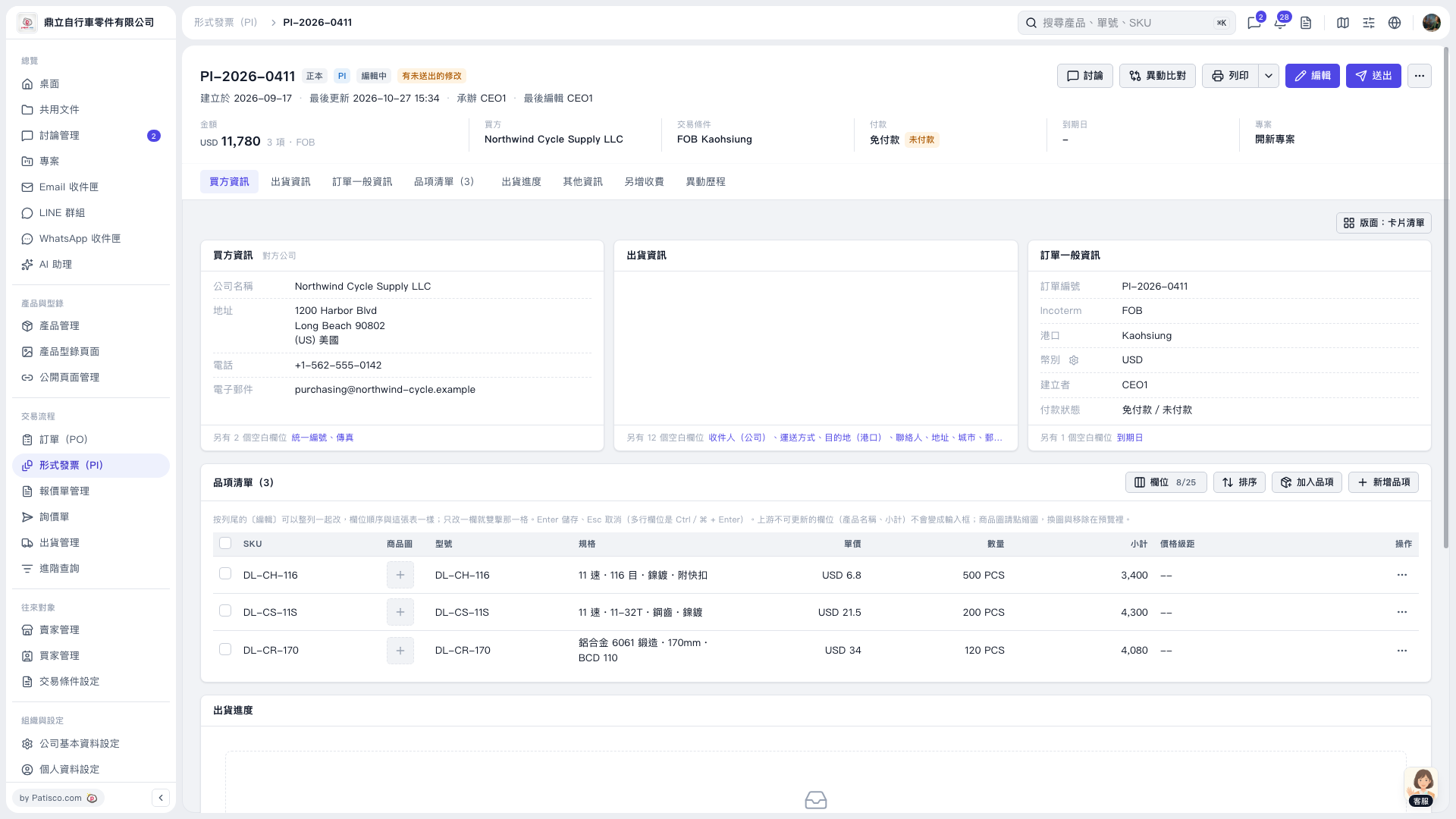 V5 新桌面版|PI–2026–0411