
1. Open the catalog editing page, find the “Banner” section in the settings panel on the left, and expand it. 2. Click [Manage Images] to add or change banner images. You can add up to six images. 3. Click [Animation Settings] next to each banner image to adjust the animation direction, duration in seconds, and focal point. 4. If you want buyers and visitors to switch images themselves, turn on “Manual Image Switching (Show Left/Right Buttons).” They can then use the left/right buttons or dots to switch images. 5. When you finish, click [Upload Changes] in the top-right corner or at the bottom of the left panel so buyers and visitors can see the latest content. Tip: Animation settings can be configured separately for each image. For example, one image can use a fixed duration and a centered focal point, while another can use an automatic duration and a custom focal point.
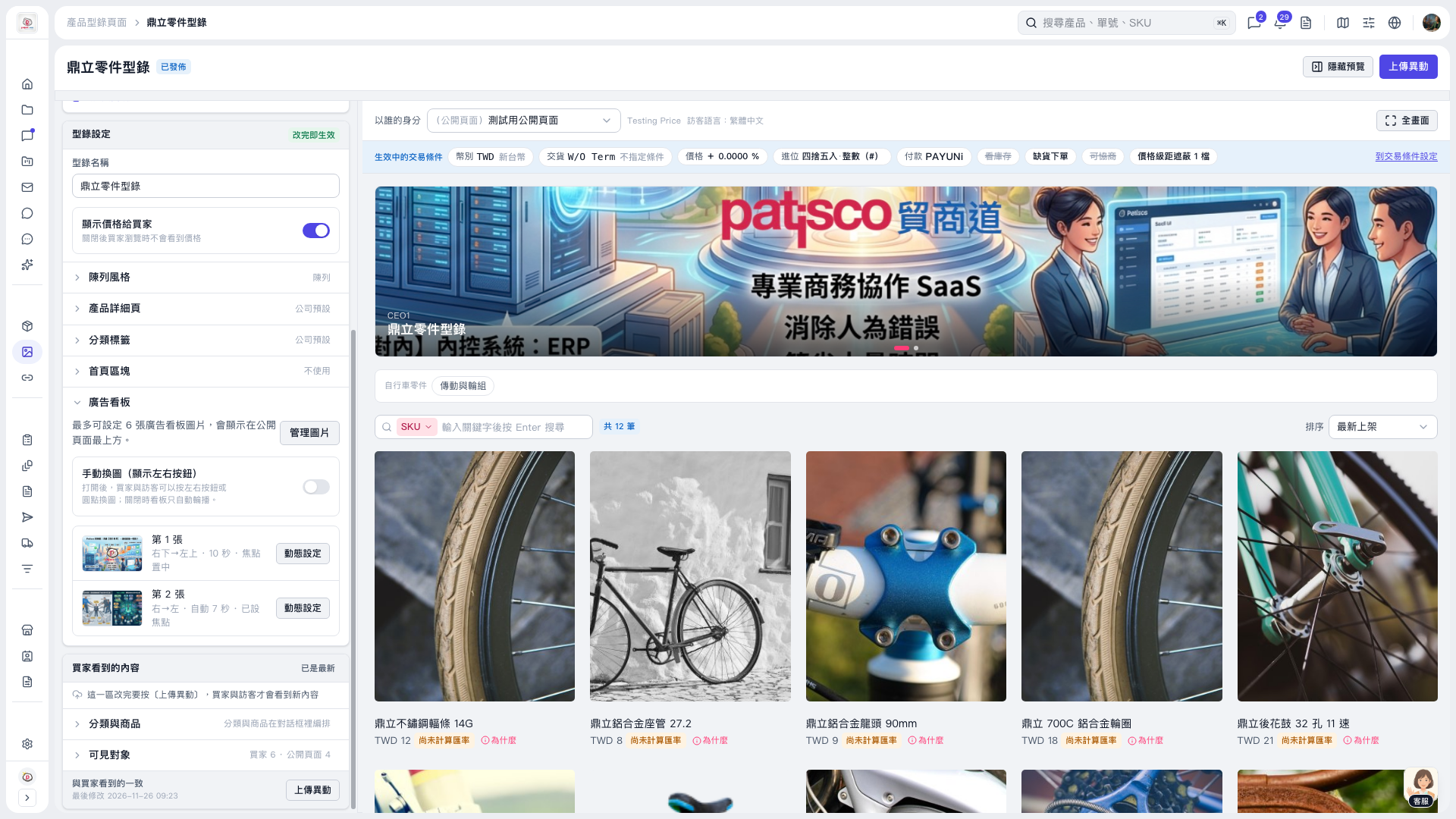 V5 新桌面版|鼎立零件型錄(已發佈)