
1. Open the packing list page for the shipment document. First, check “Shipping Information” and “Recipient Information” to make sure the shipment number, buyer, recipient phone number, email, and address are correct. 2. If you need to enter the vessel number, departure date, place of departure, destination, or expected shipment date, click [Edit] in the upper right, fill in the information, and save. 3. Scroll down to “Related PI POs” and check that the PO number, quantity, net weight, gross weight, volume, and amount are correct. To view the shipment items, click [Locate Item] in that row. 4. Once you have checked everything, click [Shipment Complete] in the upper right to mark this shipment document as shipped. Tip: You can also use the section navigation on the left of the content area (Shipping Information, Recipient Information, Related PI POs, Shipment Items, Other Terms, and Shipping Method / Courier) to jump to the corresponding section.
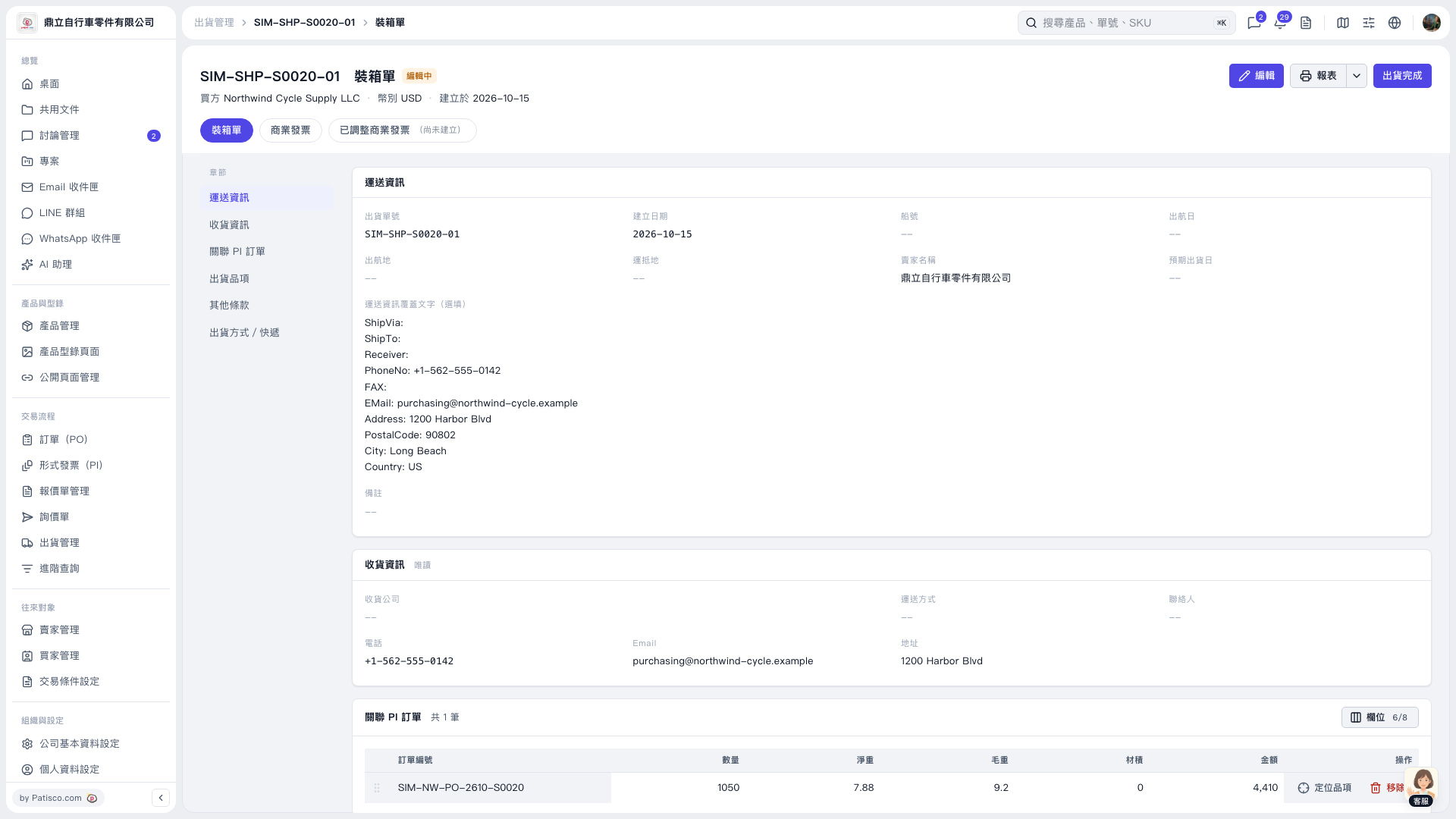 V5 新桌面版|SIM-SHP-S0020-01 裝箱單