
1. Open the project page and first check the notification banner at the top. It tells you whether any PIs or other documents associated with this shipment document were not included in the project. 2. Check the workflow stage bar in the page header (Inquiry › Quotation › PO › PI › Shipping Documents) to see the current stage. 3. If the customer section shows “No Documents Yet,” click [Link a Document] on the right of the notice and select the document you want to link. 4. You can also click [Link a Document] (+) to the right of the “Milestones” card title on the right to add and link a document. Tip: If a document is already linked to another project, the notice will indicate that it belongs to another project. It will not be automatically included in the current project.
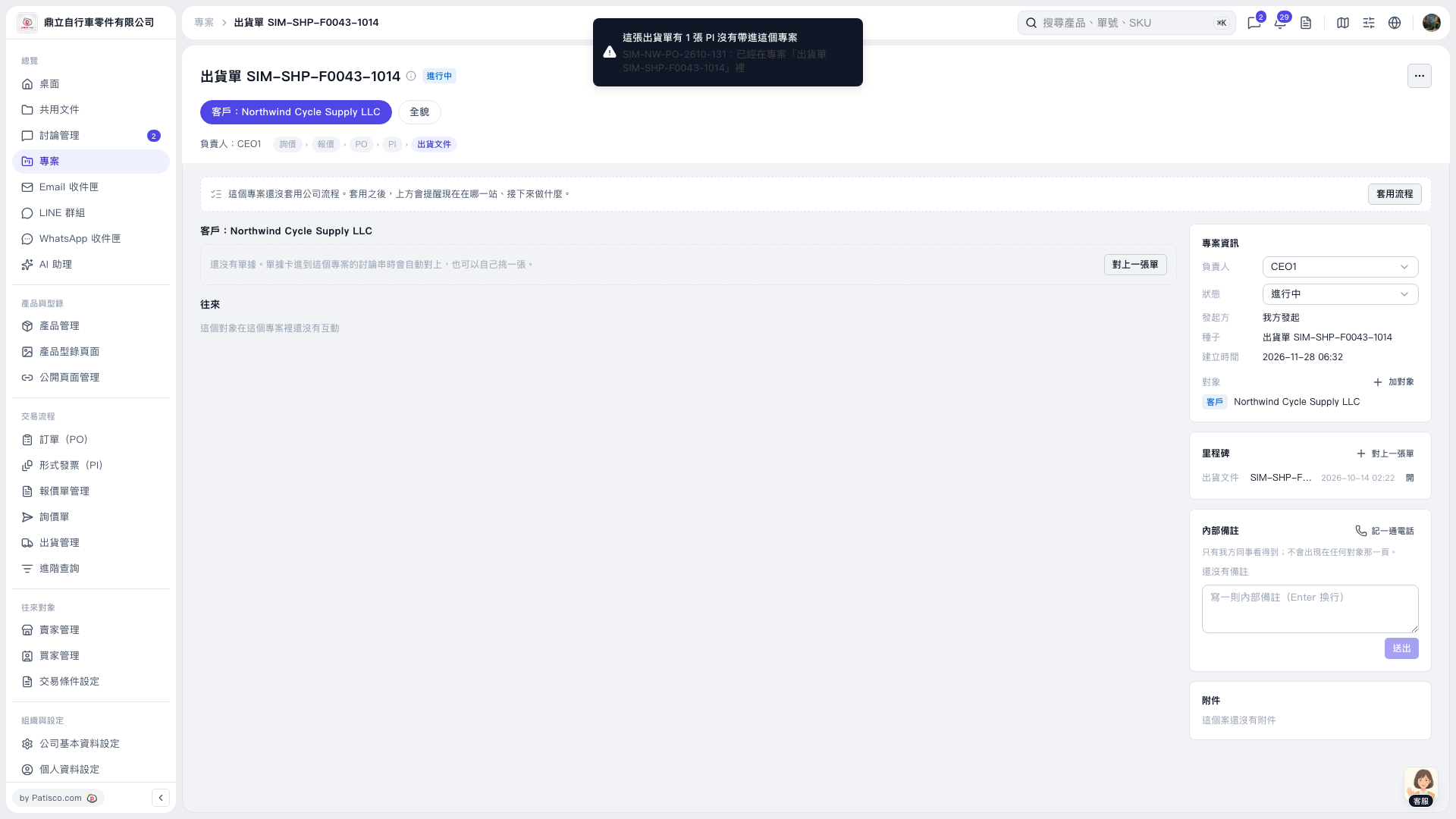 V5 新桌面版|出貨單 SIM-SHP-F0043-1014