
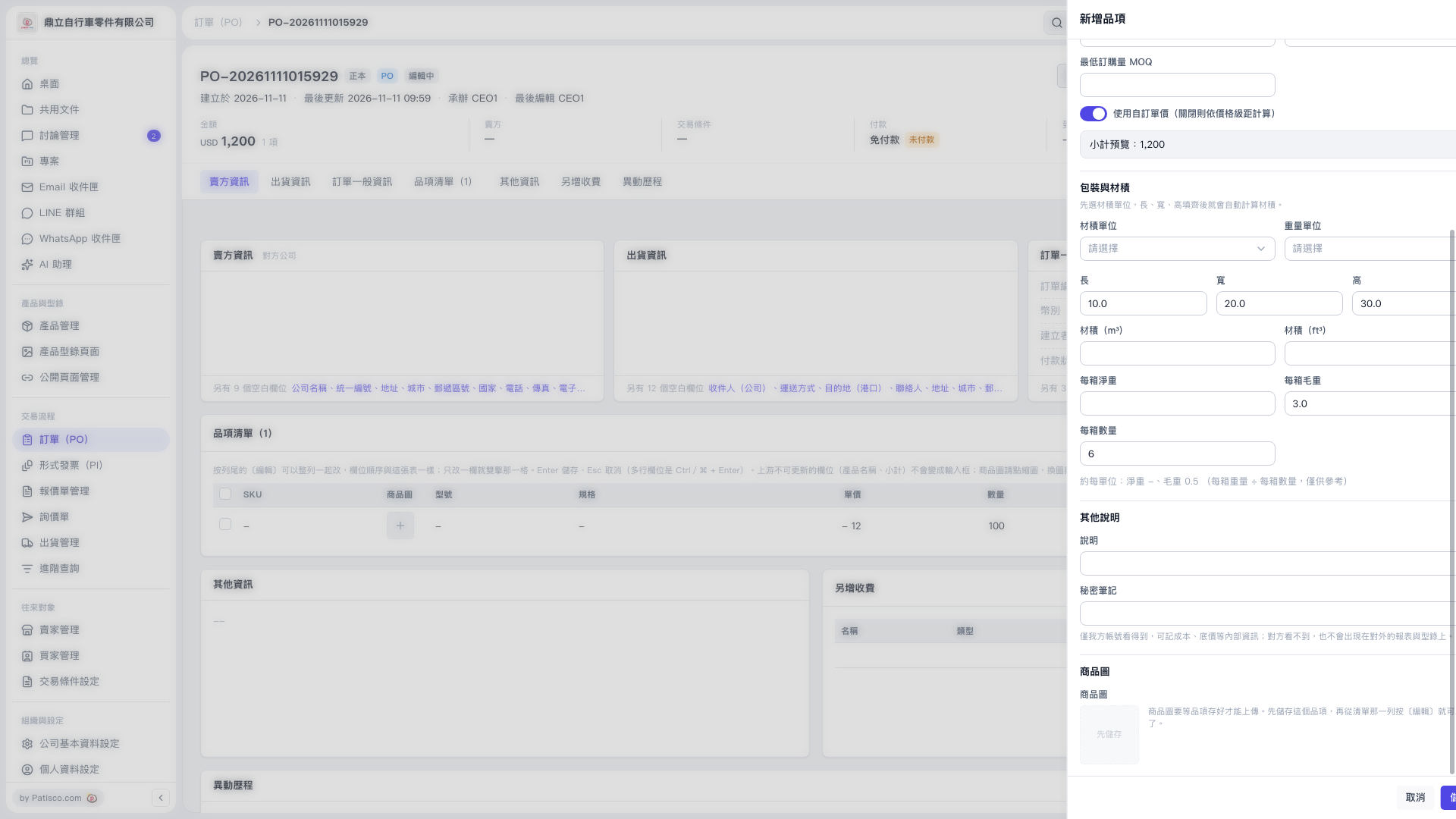
1. Scroll up in the “Add Item” panel, check the item’s basic information, “Unit Price”, and “Quantity”, and enter the “Minimum Order Quantity (MOQ)” as needed. 2. Check the “Use Custom Unit Price (calculate based on price tiers when off)” setting. It is currently on; turning it off will calculate the price based on price tiers. 3. Under “Packaging and Volume”, select the “Volume Unit” and enter the “Length”, “Width”, and “Height”. The system will calculate the volume automatically. 4. Select the “Weight Unit” and enter the “Net Weight per Carton”, “Gross Weight per Carton”, and “Quantity per Carton”. 5. Fill in “Description” and “Secret Notes” as needed. Secret notes are visible only to accounts on your side. 6. Check the “Subtotal Preview”, then click the save button in the lower-right corner.
 V5 新桌面版|訂單 PO-20261111015929