
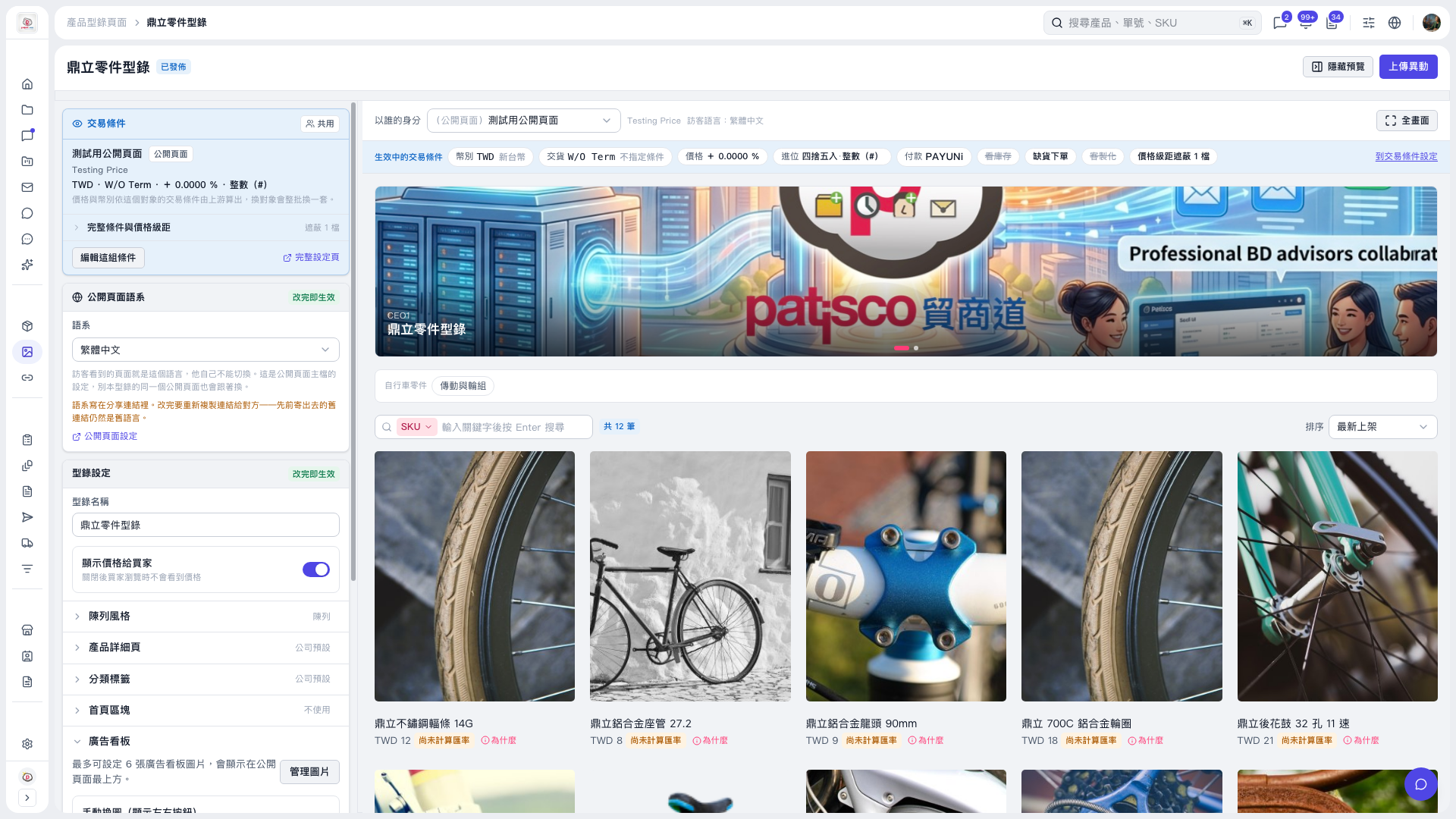
1. Expand “Banner” on the left side of the catalog editing page. To adjust the images, click “Manage images”. You can add up to 6 images. 2. Scroll down in the settings panel on the left, find “Manual image switching (show left and right buttons)”, and turn it on or off as needed. 3. Check the result in the preview on the right. Currently, when this setting is off, the preview does not show left and right buttons. The dots at the bottom only indicate the image position and cannot be clicked to switch images. 4. When finished, click “Upload changes” in the upper-right corner.
 V5 新桌面版|鼎立零件型錄