
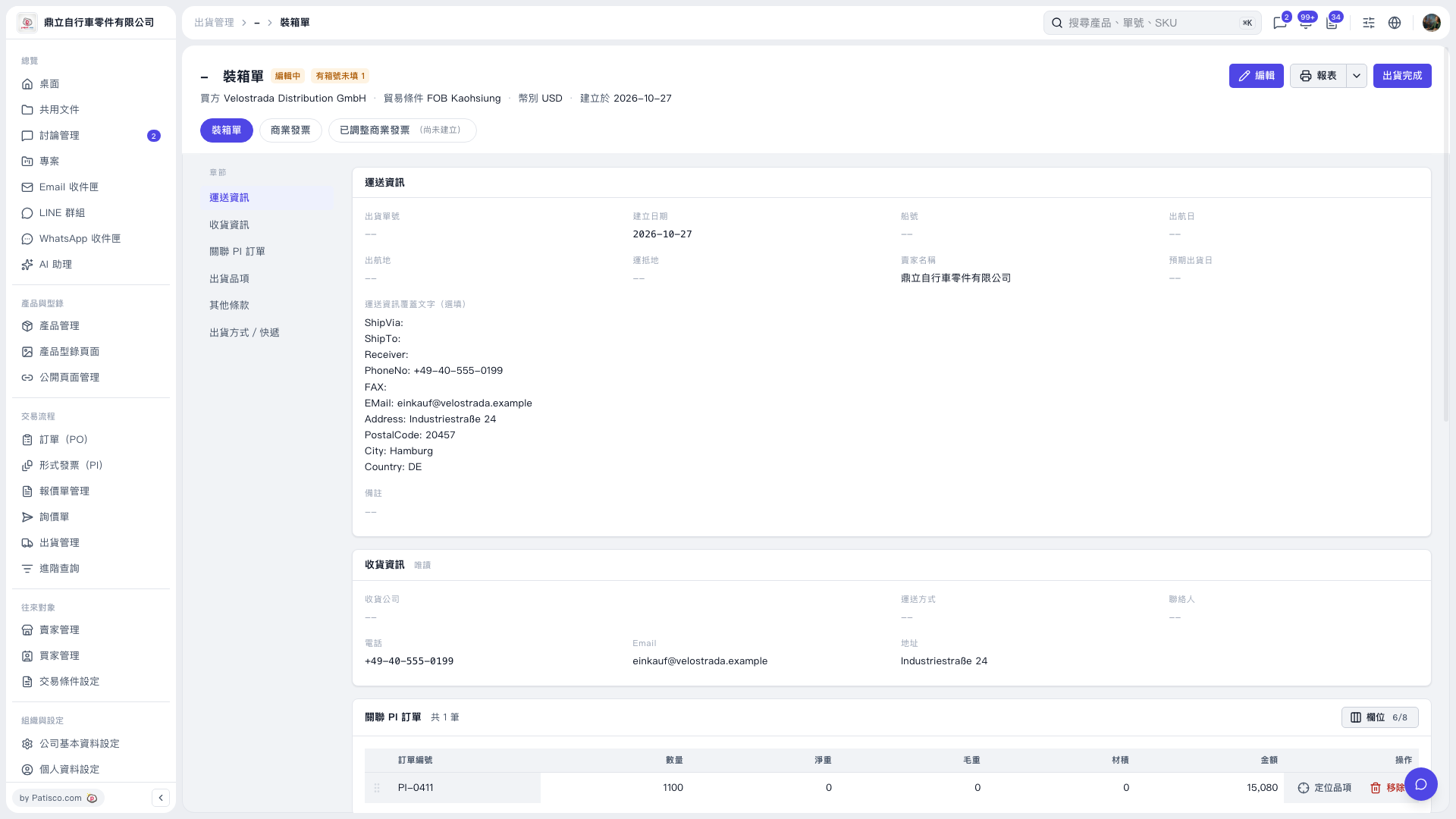
1. At the top right of “Packing List”, click the dropdown arrow next to “Report” and select “System Native”. 2. On the “Generate Report” screen, confirm that “Print HS Code” is checked. This option is checked by default; uncheck it if you do not need to print HS codes. 3. The HS code is printed on the first line of each item's “Product Name (Product Description)” column. No extra column is added. Items without an HS code entered will not have an HS code printed. 4. You can ask: “Where will the HS code be printed after I check ‘Print HS Code’?” An example AI response is: “It will be printed on the first line of each item's ‘Product Name (Product Description)’ column. No extra HS code column will be added.”
 V5 新桌面版|裝箱單