
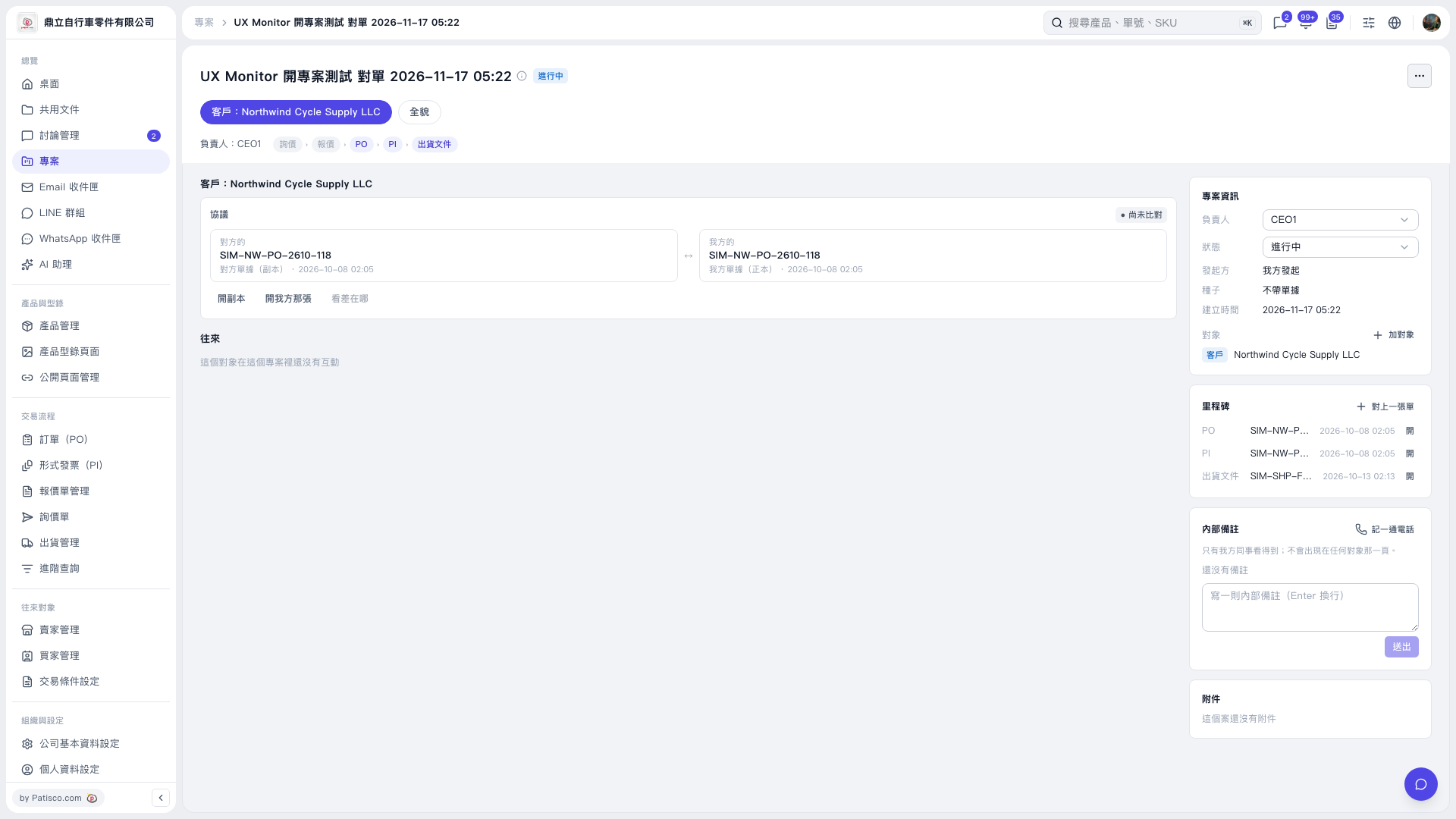
1. Open the project you want to link a document to, then click “+ Link a Document” in the upper-right corner of the Milestones section on the right. 2. Follow the prompts on the following screens to select the document and complete the linking process. Once successful, “Linked:” and the document number will appear, for example, “Linked: SIM-SHP-F0043-1013.” 3. Return to Milestones and confirm that the document appears in the list, then click “Open” at the far right of its row to view its contents. 4. If you see “This document is already in another project and cannot be linked to this project,” the document is already linked to another project and cannot be linked to the current project.
 V5 新桌面版|UX Monitor 開專案測試 對單 2026–11–17 05:22