
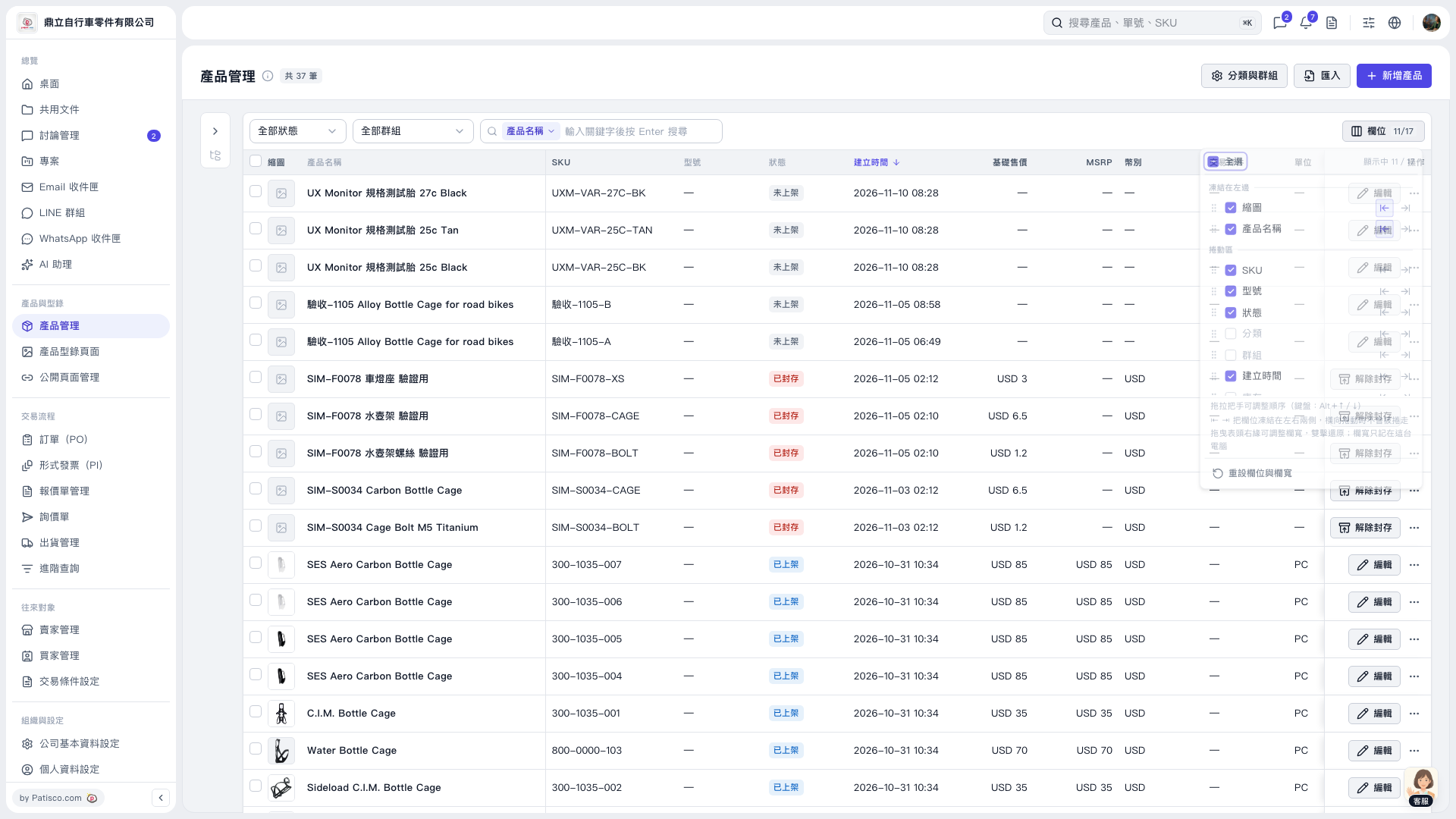
1. Click “Columns” at the top right of the Product Management list to open the column settings panel. 2. Select the columns you want to display and clear the checkboxes for those you want to hide. You can also use “Select All” at the top of the panel to toggle the selection state of all columns. 3. Drag the handle to the left of a column to change its order, or use Alt + ↑/↓. 4. Use the arrows to the right of a column to adjust its pinned position on the left or right. 5. To restore the column configuration and widths, click “Reset Columns and Widths” at the bottom of the panel.
 V5 新桌面版|產品管理