
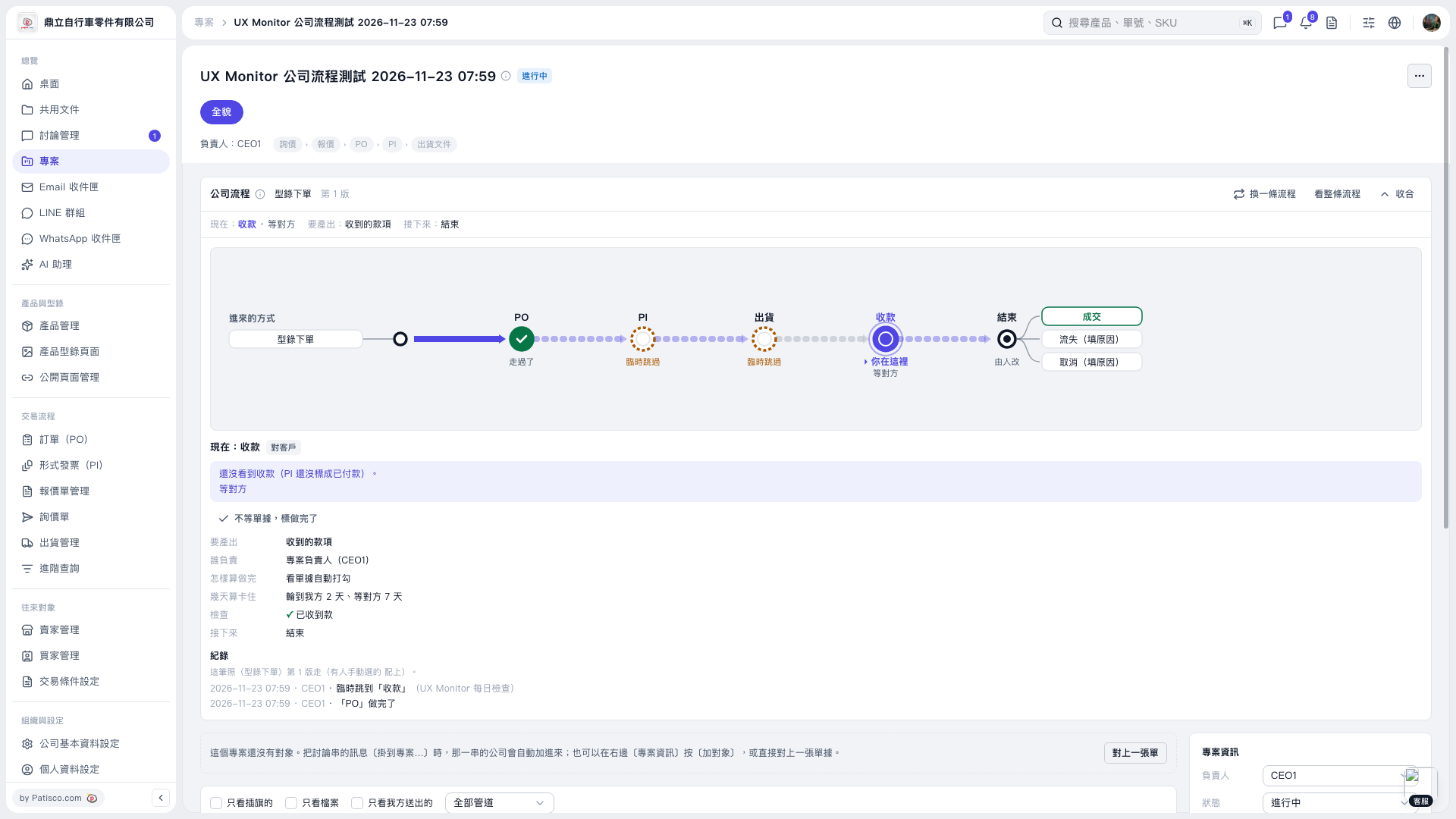
1. The project owner or top-level administrator can select the destination step in the workflow diagram, then click [Jump to this step]. 2. Enter the reason for the jump, then click [Jump]. 3. Open “History” to check the result. The latest record appears at the top. The jump record includes the reason, and earlier steps that were not followed are marked “Temporarily skipped.” Jumping only updates the project workflow record. It does not modify documents or block document operations.
 V5 新桌面版|UX Monitor 公司流程測試 2026–11–23 07:59