
1. In the “Default Workflows” section under “Company Workflow,” find the workflow you want to change and click [Edit]. 2. In the workflow editor, click [Manual step] in the component palette on the left to add a step, then adjust the routes and the settings on the right. The draft is saved automatically, and “Draft saved” appears. 3. Click [Check and publish] to apply the updated workflow. The changes do not affect others until they are published. 4. If “Cannot publish yet” appears, follow the prompts to fix missing connections or places where there is no path from start to end, then click [Check and publish] again. If publishing is blocked, the draft is still retained.
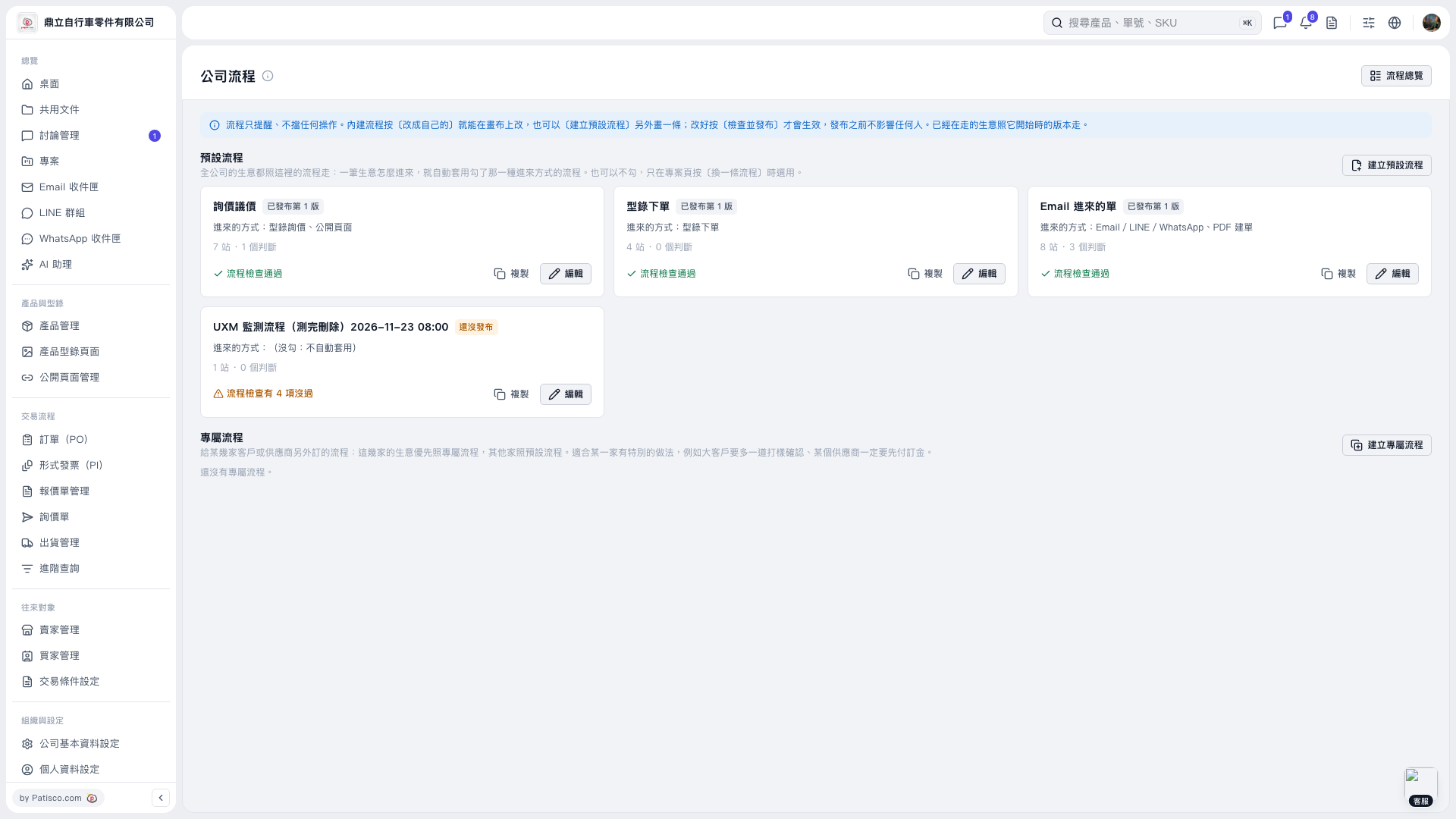 V5 新桌面版|公司流程