
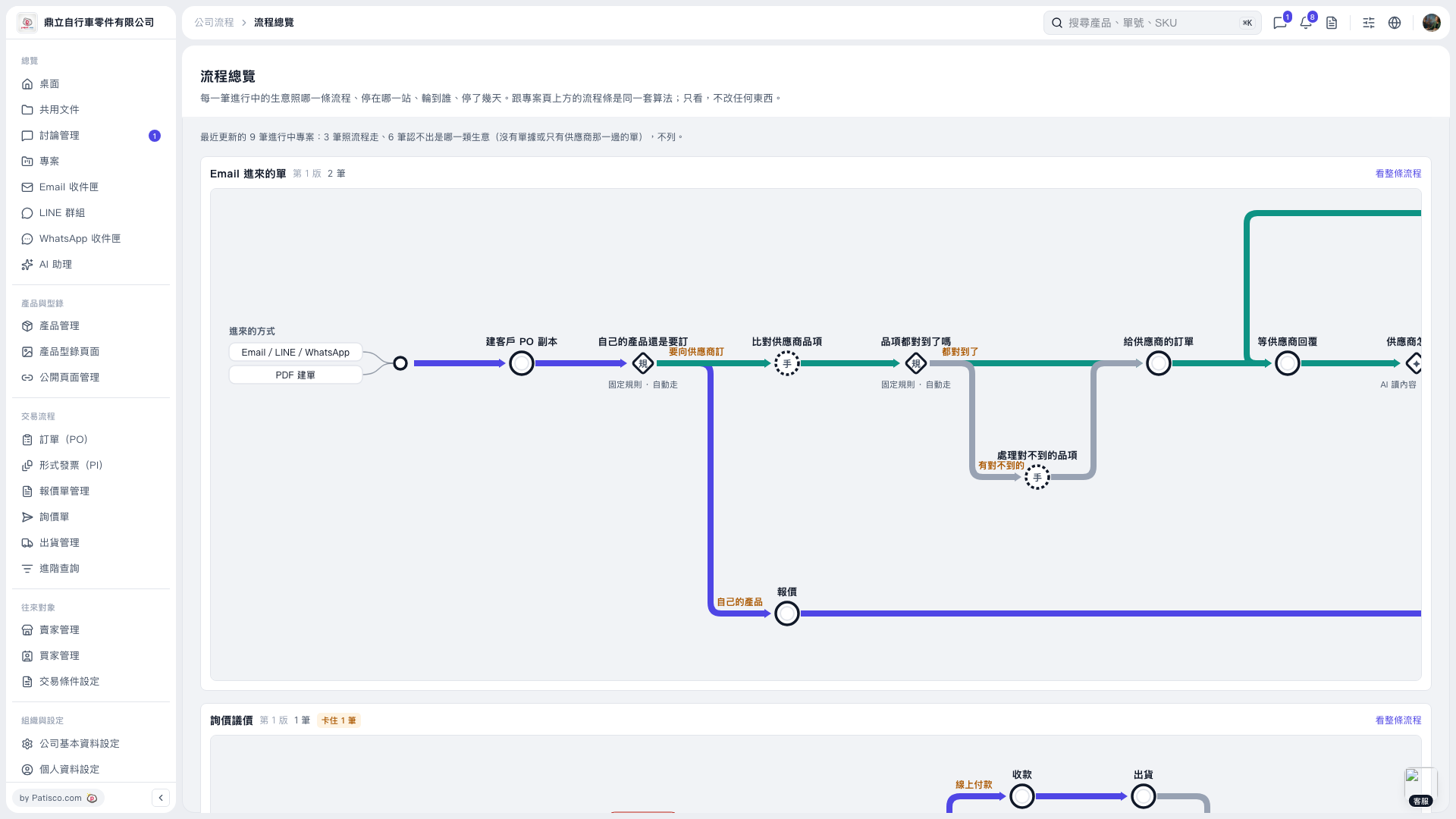
1. Using the top-level administrator account, click "Workflow Overview" in the upper-right corner of "Company Workflows." 2. Review the project statistics at the top, then find the workflow card you want to view and check its workflow version, project count, and stalled project count. 3. Follow the arrows in the workflow diagram to view each stage and branch. Stages with projects currently at them display a project count above them, with stalled project counts shown separately. 4. Click "View Entire Workflow" in the upper-right corner of the card to view the complete workflow. 5. Review the table below to see each project's workflow and version, current stage, whose turn it is, days at the current stage, and responsible person. "Workflow Overview" is view-only and does not modify project data.
 V5 新桌面版|流程總覽