
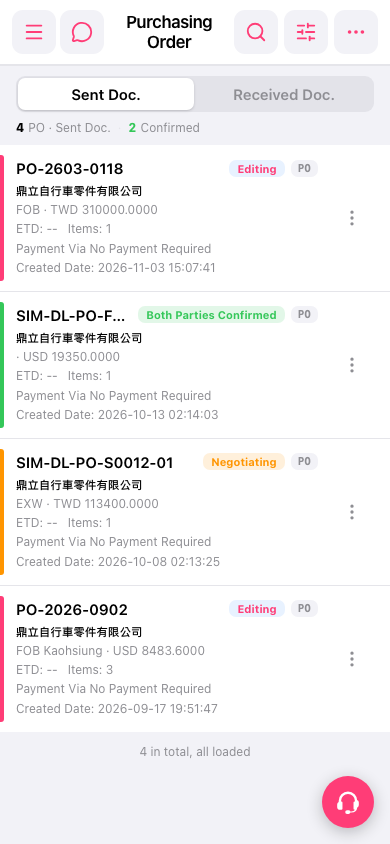
1. In the PO list, identify the target PO by its PO number, status label, or created date. 2. If there are too many, tap the search icon in the upper right to search for the PO, or tap the filter/adjust icon to set filter or sort conditions. 3. Tap the PO card to open its details and view the items, amount, trading terms, and payment method. 4. When you need to take action, tap the "⋮" (three-dot menu) on the right side of the card and choose the action you need, such as view, edit, or delete. 5. Handle it according to its status: A PO in Editing can be edited further and then sent to the supplier. For a PO in Negotiating, confirm the contents with the other party and complete the confirmation by both parties. Both Parties Confirmed means the confirmation is complete.
To add a new PO, tap the "…" icon at the far right of the upper right corner to see more function options.
 手機版|Purchasing Order(採購單)