
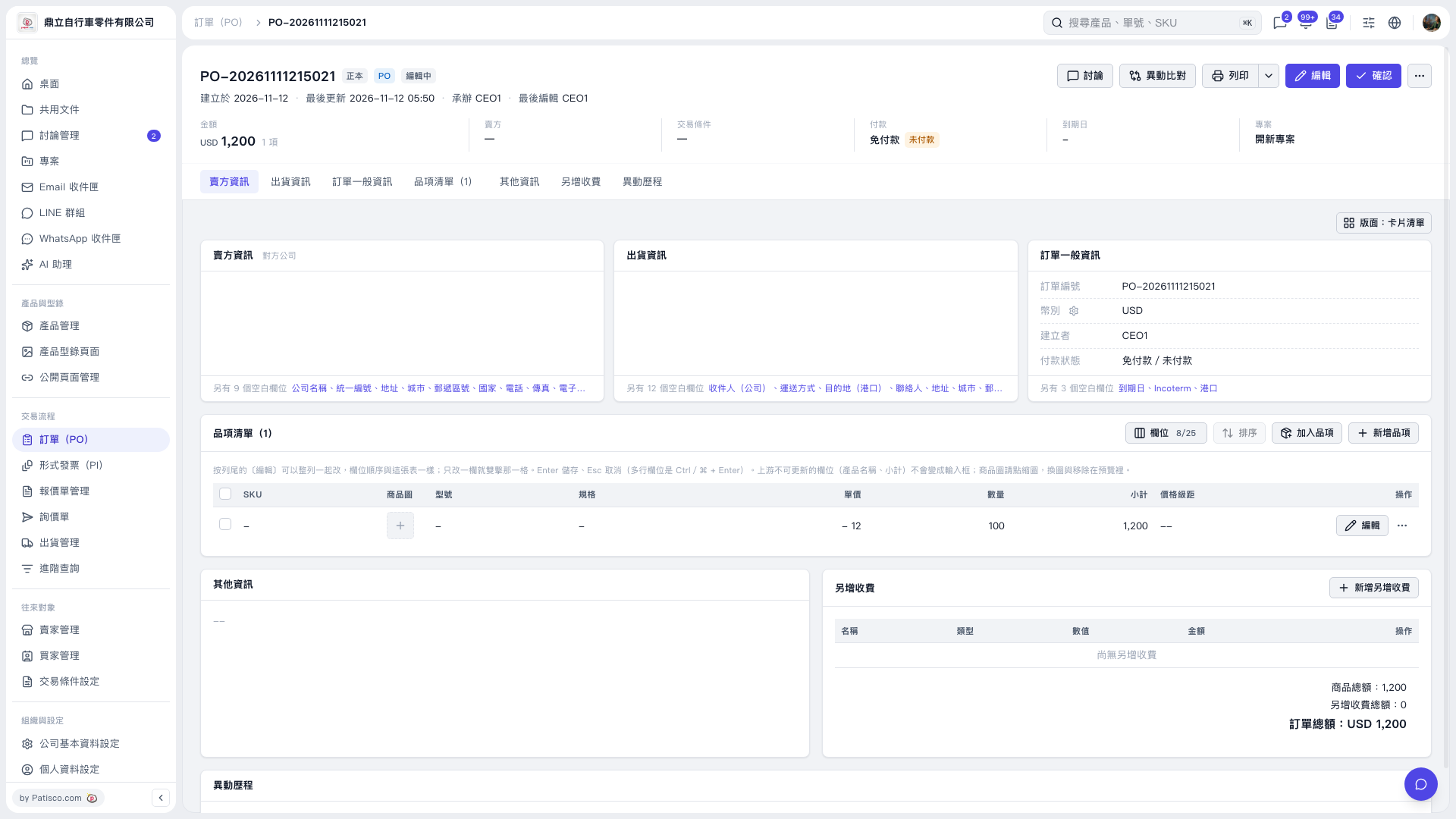
1. Open the PO you want to print and check the PO number, buyer, currency, item quantities and unit prices, and PO total. 2. To change the PO details, click “Edit” in the upper-right corner. To change an item, click “Edit” on the right side of that item's row. 3. After checking the details, click “Print” in the upper-right corner to start the printing process. To see other print options, click the drop-down arrow next to “Print.” 4. Check the contents again in the print preview. In this example, “Patisco Standard (Default)” is used, and the preview shows a quantity of 100, a unit price of USD 12, and a PO total of USD 1,200.
 V5 新桌面版|PO–2026111215021