
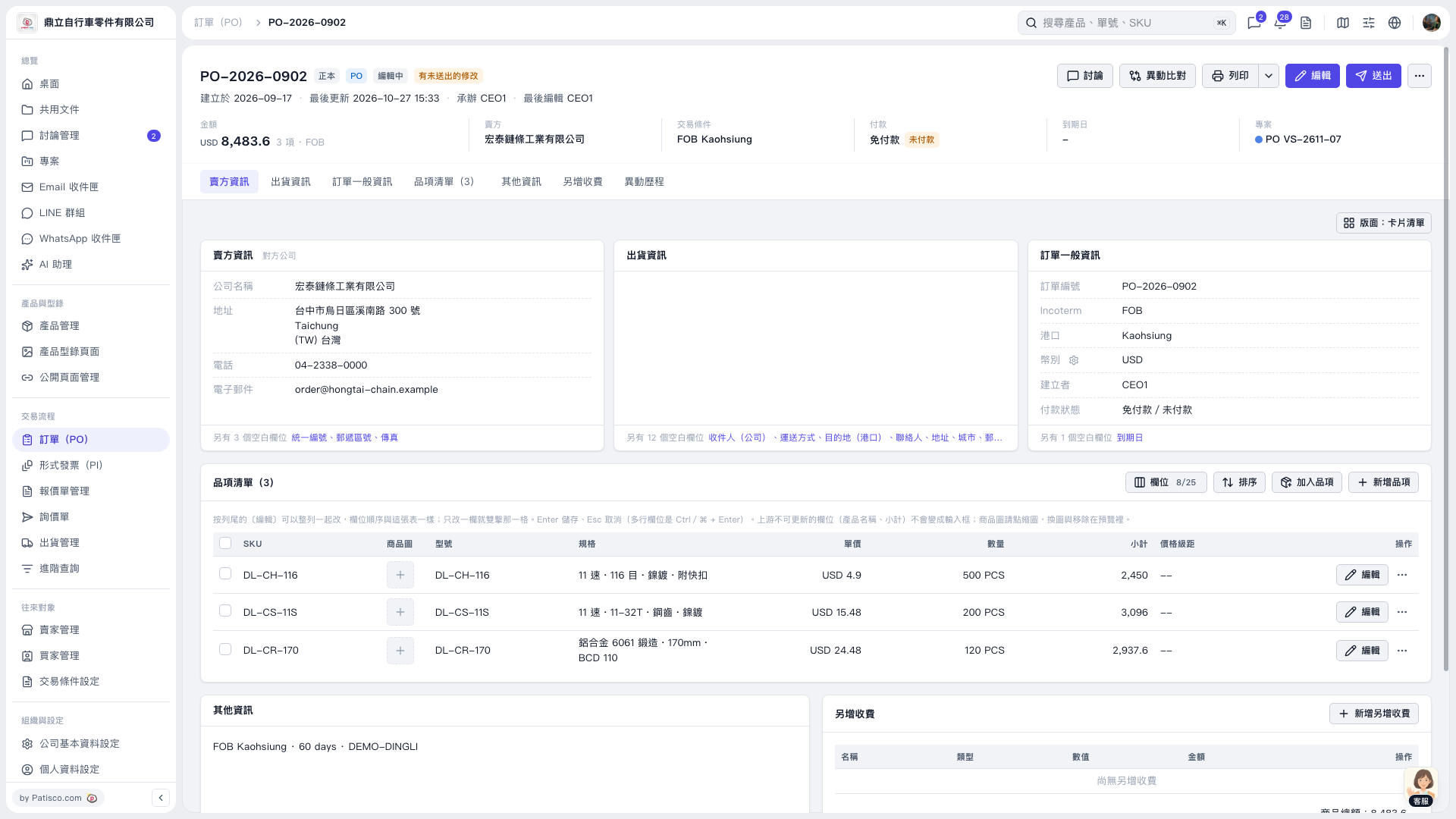
1. Open the PO details page and check the PO number, seller, amount, trading conditions, and payment status at the top. 2. Click [Edit] at the top right and update the PO information as needed. 3. To change an item, go to “Item List” and click [Edit] on the right side of that item’s row. 4. To add items, click [Add Item] at the top right of the item list to add existing items to the PO, or [New Item] to create a new PO item. 5. To add extra charges, go to the “Additional Charges” section and click [Add Additional Charge] at the top right. 6. After making changes, click [Diff View] to review what changed, then check the item quantities, unit prices, and PO total. 7. Once everything is correct, click [Send] at the top right to send the pending changes. If you leave without clicking [Send], the changes will not be sent.
 V5 新桌面版|PO–2026–0902