
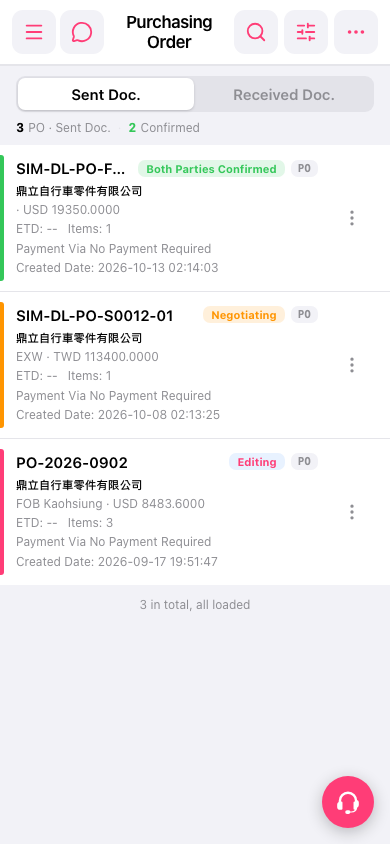
1. On the “Purchasing Order” page, tap the search icon at the top right to search by document number and other criteria. You can also tap the filter/settings icon to the right of the search icon to filter by status and other criteria. 2. Each entry in the list shows the PO number, supplier name, trading terms and currency amount, ETD, Items (number of items), Payment Via, and Created Date. 3. Check the color bar on the left and the status label to judge progress: Both Parties Confirmed, Negotiating, or Editing. You will also see priority labels such as P0. 4. Tap the PO to open its details and view or edit the content. 5. For more actions, tap the three-dot icon on the right side of that entry and choose the function you need. 6. If you need help, tap the customer service icon at the bottom right.
 手機版|Purchasing Order(採購單)