
1. After logging in, go to the mobile Dashboard page. 2. Make sure the tab bar at the top is on "Analytics v1.0" (if you are on the "Analytics" tab, tap to switch over). 3. Scroll down to the "Sellers' Product Pages" section, where you will see a list of seller cards. Currently there are two: "Patisco 全服務" and "O2 City E-Bikes". 4. On each card you can check Items (number of items), Currency, and Trading terms. 5. Tap the seller card you want to view to open that supplier's catalog and product pages, where you can browse products or place orders.
You can also ask the AI assistant: "How many seller catalogs are on the Dashboard?" The AI will reply: "seller catalogs on dashboard: 2", meaning there are currently 2 seller catalogs, which matches the two cards on the screen.
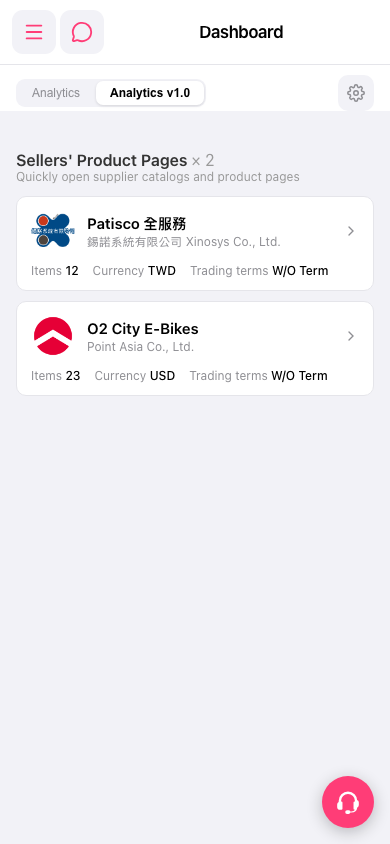 手機版|Dashboard(儀表板)