
1. Tap the hamburger menu icon at the upper left and go to Purchasing Order. The page shows the PO list. 2. Use the tabs below the title: select "Sent Doc." to see the POs you sent, or "Received Doc." to see the POs you received. 3. Check the status label on each card to see its progress: Editing, Negotiating, or Both Parties Confirmed. 4. Tap a PO card to open its details to view or edit it. For other actions, tap the "⋮" menu on the right side of that PO. 5. The bottom of the list shows "4 in total, all loaded", which means all data has been loaded.
Each card also shows the PO number, supplier name, trading terms and currency amount, ETD, Items (number of items), Payment Via, and Created Date.
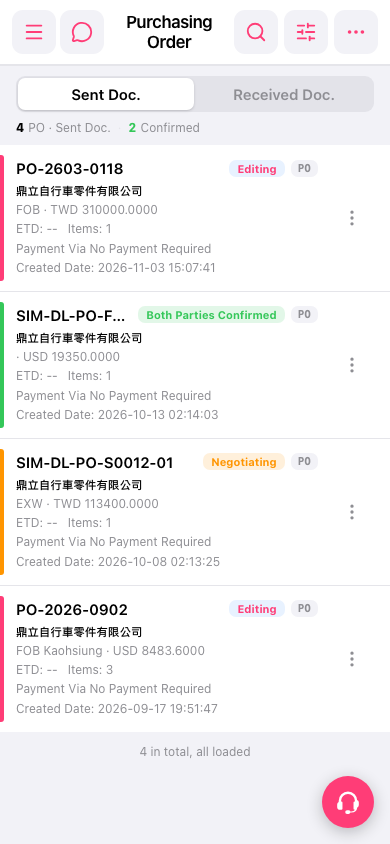 手機版|Purchasing Order