
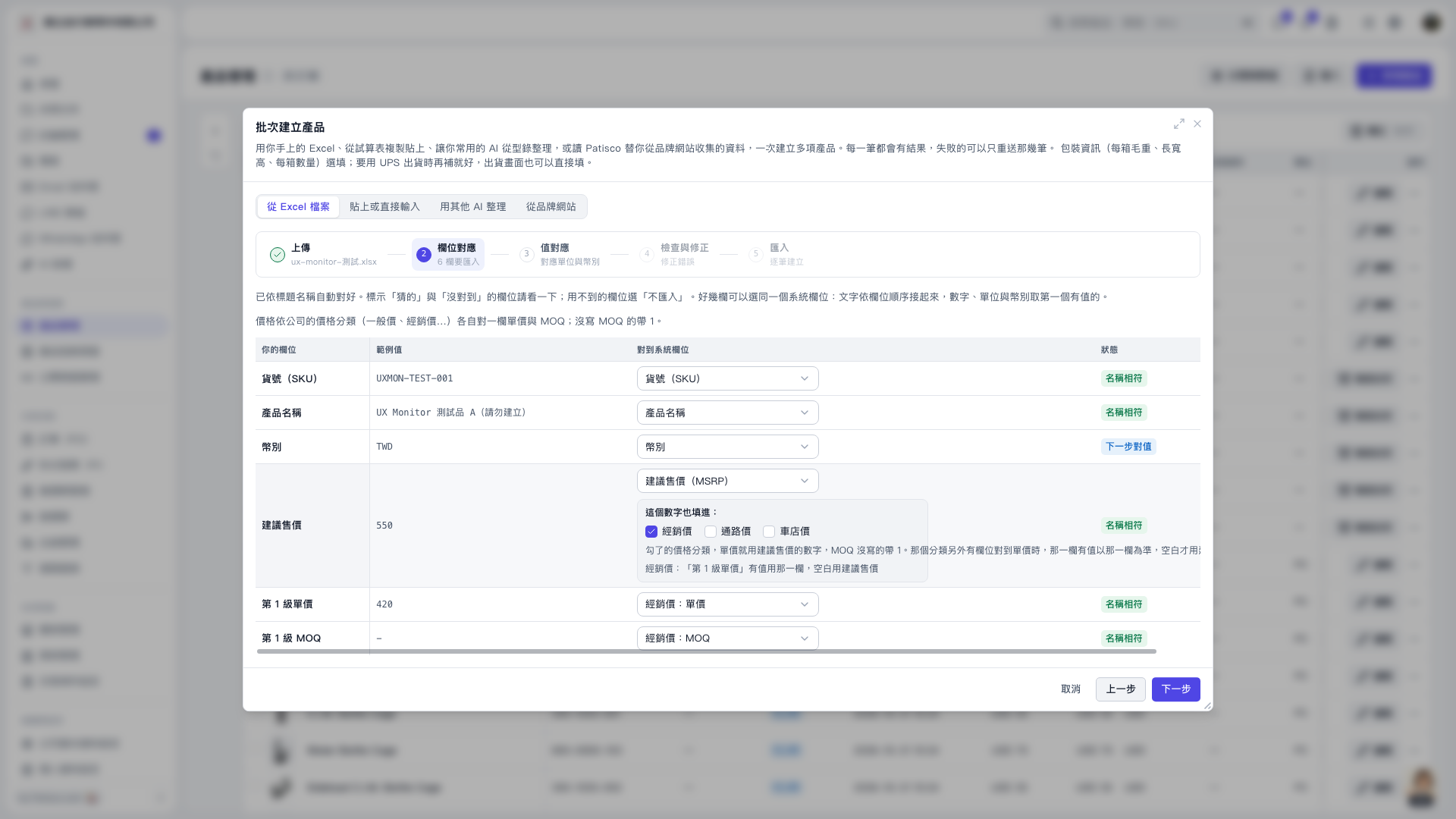
1. In the column mapping table under “Create Products in Bulk,” review “Your Column” and “Sample Value” to confirm that the source data is correct. 2. In the suggested retail price row, select “Suggested Retail Price (MSRP)” from the “Map to System Field” dropdown. 3. Under “Also Fill This Value Into,” select the price categories you want to fill with the same value. 4. Check the unit price and MOQ mappings for each price category. If a separate unit price column is mapped, its value takes priority. If the unit price is blank, the MSRP is used. If MOQ is not provided, 1 is used. 5. Click “Next” to continue checking the unit and currency value mappings.
 V5 新桌面版|批次建立產品