
1. In the left sidebar, click “Buyer Management” under “Business Partners”, then click the buyer you want to invite. The status at the top of the page will be “Not Invited”. 2. First, check the contact person, address, and other information in the “Company Information” card. To make changes, click [Edit] in the upper right of the card. 3. If you need to send UPS shipments or documents in English, click [Edit] in the “English Information” card and enter the company name, contact person, and address in English. The system does not translate automatically, so enter the English information provided by the buyer. 4. Click [Generate Invitation Link] in the upper right of the page header, copy the link, and share it with the buyer. Alternatively, click [Send Invitation] to have the system send an invitation to this buyer. 5. After the buyer accepts the invitation, use [Send a Catalog to the Customer] on the right side of the “Visible Catalogs” section to assign a catalog for them to view.
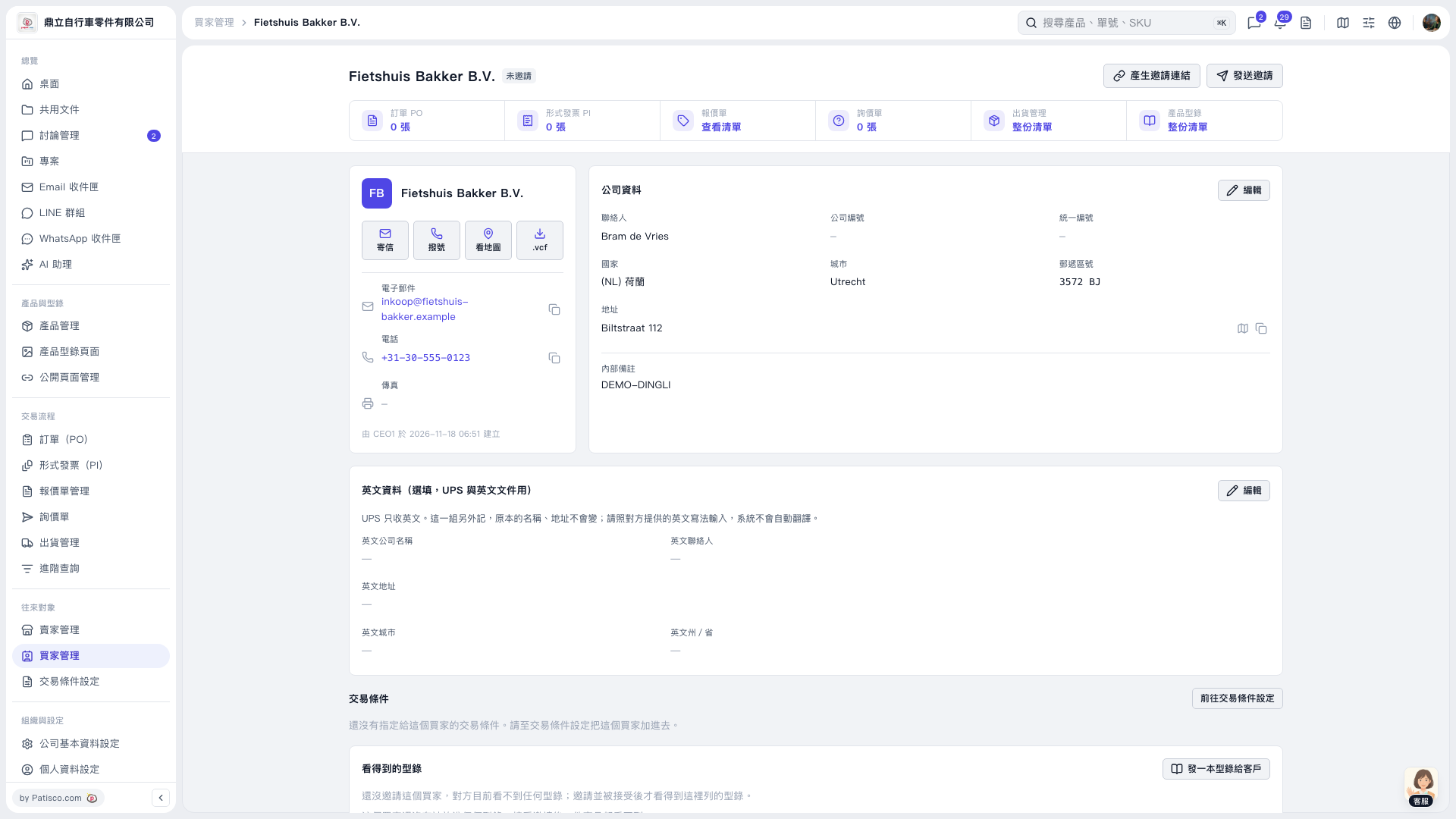 V5 新桌面版|Fietshuis Bakker B.V.(買家詳情,狀態:未邀請)