
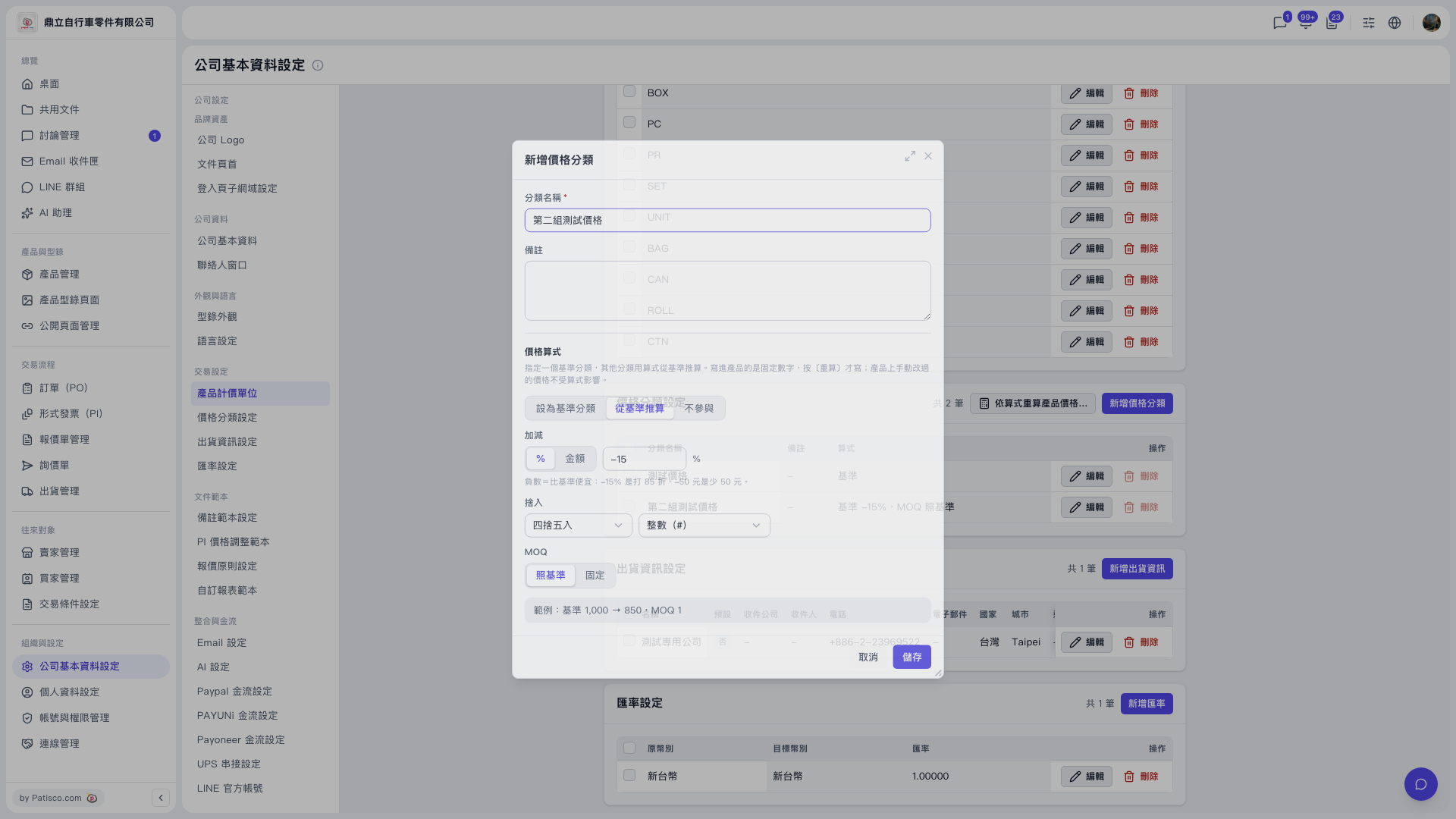
1. In the "Add Price Category" dialog, under the "Price formula" section, you can choose one of three roles: - Set as base category: this category is the reference that other categories are calculated from. - Calculate from base: the price of this category is calculated from the base category's price by adding or subtracting a % or an amount. - Not included: this category is not part of the price formula. 2. For "MOQ", you can choose "Same as base" (use the base category's MOQ) or "Fixed" (use a fixed value). 3. After clicking "Save", go back to the "Price Category Settings" section. The "Formula" column in the list shows the setting of each category. In the demo, "Test Price" = base; "Second Test Price" = base −15%, MOQ same as base. 4. To apply the new formula to existing products, click "Recalculate product prices by formula…" at the top right of the section. In the demo, you can recalculate from the base "Test Price" to "Second Test Price". 5. To change a category later, click "Edit" on the right side of its row in the list. To remove a category you don't need, click "Delete".
 V5 新桌面版|公司基本資料設定