
1. On the Product Management page, click "Import" at the top right to open the bulk create products dialog. 2. Choose "From Excel file", upload the file and complete "Column mapping" and "Value mapping". You will then reach Step 4, "Review and fix". 3. In the preview table, confirm that the "Status" of every row is "Ready to import". 4. To make changes, edit the product name, SKU, currency, unit price, MOQ and MSRP directly in the table. These changes only affect this import and do not change the original Excel file. 5. When there are many rows, use the quick filters to the right of the search box (has errors, has warnings, SKU already exists, unit price is 0 or empty, not imported) to filter them, or type an SKU, name or the content of any cell into the search box. 6. After confirming everything is correct, click "Next" at the bottom right of the dialog to go to Step 5, "Import", where the system creates the products one by one. To go back one step, click "Back". To abandon this import, click "Cancel".
Note: if an MOQ cell shows "Empty", the default value 1 will be used when the product is created.
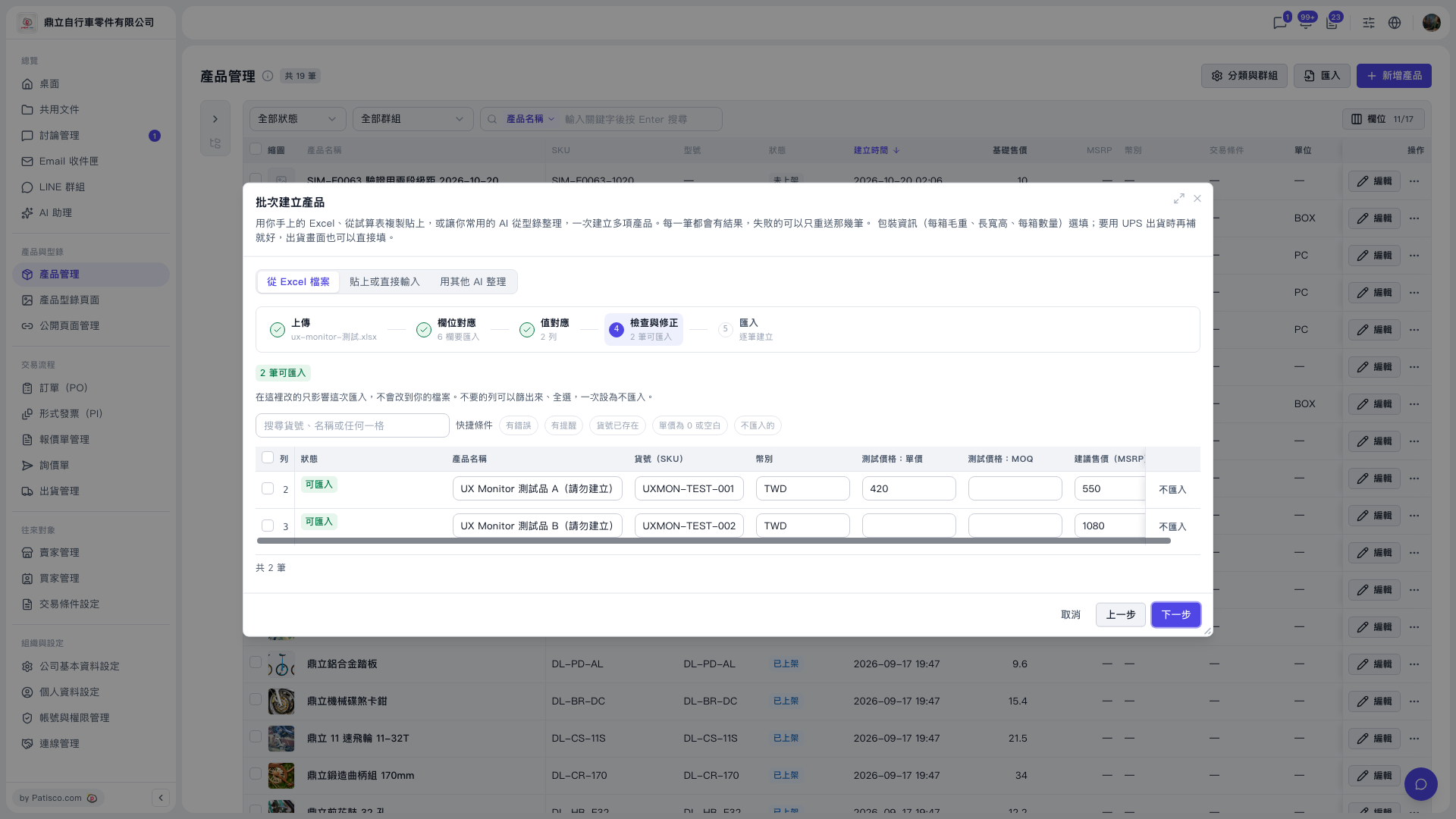 V5 新桌面版|產品管理(批次建立產品對話框:步驟 4 檢查與修正)