
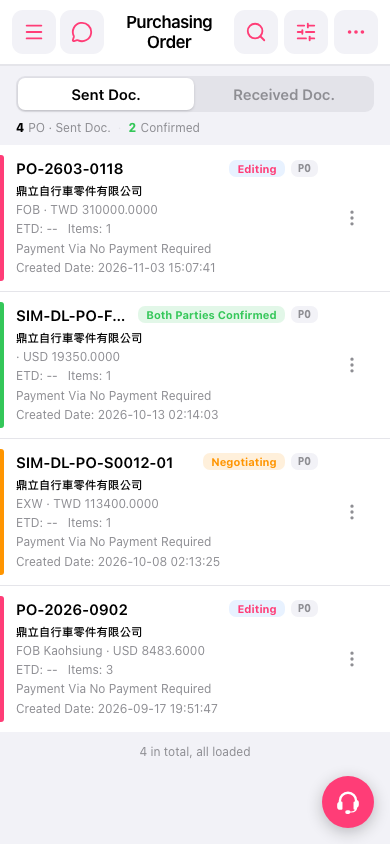
1. Check progress: each PO card has a color bar on the left, with a status label beside it showing Editing, Negotiating, or Both Parties Confirmed. The card also shows the PO number, supplier name, trading terms and currency amount (for example FOB, TWD 310000.0000), ETD, Items (number of items), Payment Via (payment method), and Created Date. 2. Find a specific PO: tap the "search icon" at the top right and enter a keyword, or tap the "filter icon" to its right to set conditions. 3. View or edit contents: tap the PO card to open its details. 4. Other actions: tap the "⋮" (vertical three dots) on the right side of the card to open the action menu for that PO. 5. When you need help, tap the pink round support icon at the bottom right.
 手機版|Purchasing Order