
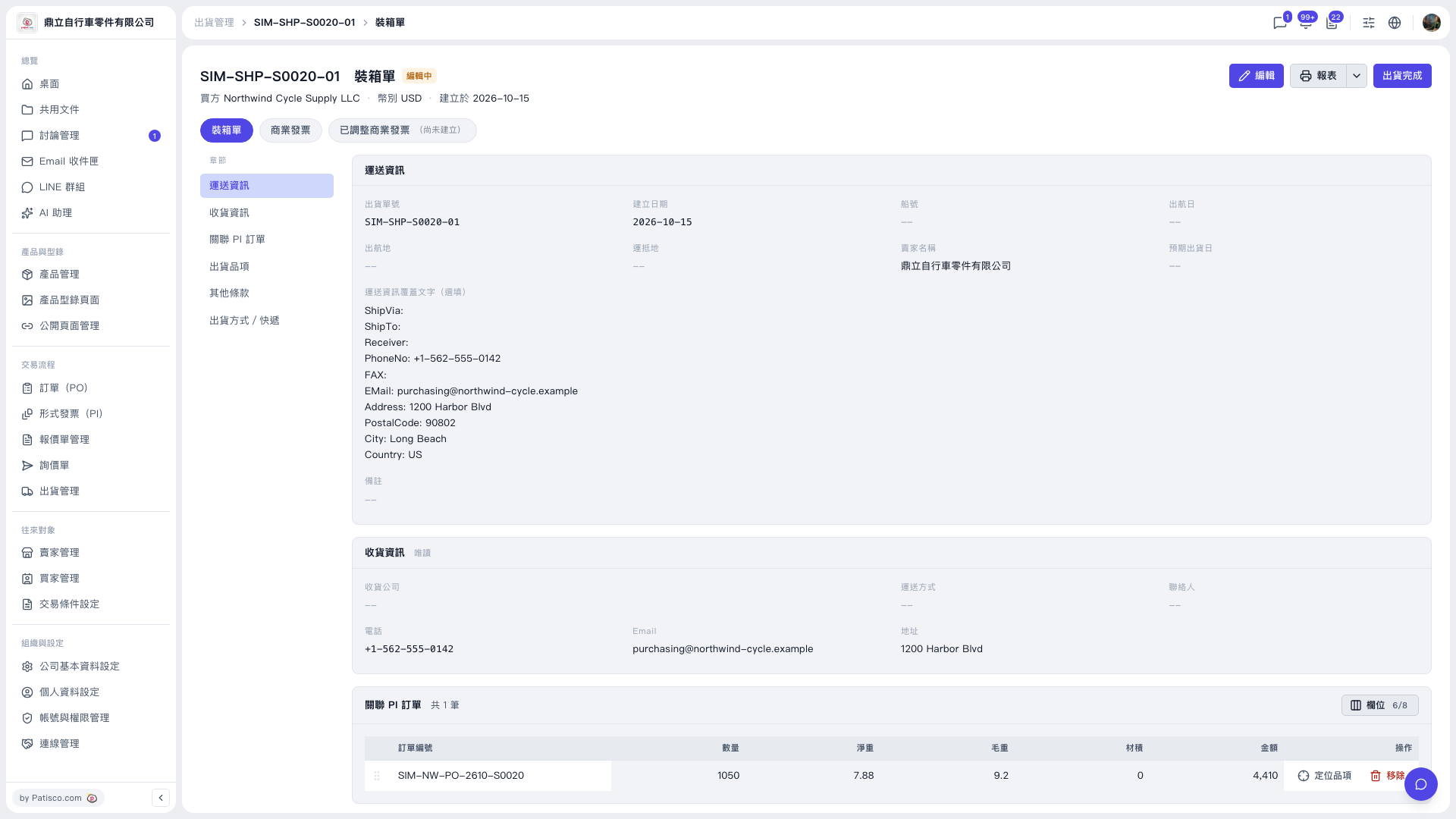
1. In the "Related PI orders" table, check the order number, quantity, net weight, gross weight, volume, and amount. To see the items, click "Locate items" in that row's action column. If an order should not be on this shipment, click "Remove". 2. To change which columns the table shows, click "Columns 6/8" at the top right of the Related PI orders section. 3. For a paper or file copy, click "Report" at the top right to print or export the packing list. The dropdown arrow next to it lets you choose other report formats. 4. To view the commercial invoice, click the "Commercial invoice" tab below the title. If "Adjusted commercial invoice" shows as not yet created, that data does not exist yet. 5. Once everything is confirmed, click "Complete shipment" at the top right. The shipment will be marked as shipped.
 V5 新桌面版|SIM-SHP-S0020-01 裝箱單