
1. In the left sidebar, click "Trading Workflow > Proforma Invoice (PI)" and open the invoice you want to work on (for example, PI-2026-0411). 2. Click the blue-purple "Edit" button at the top right to enter edit mode. 3. Use the section navigation on the left side of the page (Buyer Information, Shipping Information, Item List, etc.) to check each section and fill in blank fields, such as the shipping method, destination (port), and consignee under Shipping Information. 4. Go to "Item List" and click "Add Items" to select from product data, or click "New Item" to add a row manually. To edit a whole row, click "Edit" on that row; you can also double-click a single field to edit it directly, then press Enter to save or Esc to cancel. 5. Check that the unit price, quantity, subtotal, and the total amount at the top (USD 11,780 in this example) are correct. 6. Click "Diff view" at the top right to review what has been changed this time. 7. Once everything is correct, click "Submit" at the top right to submit the changes that have not been submitted yet.
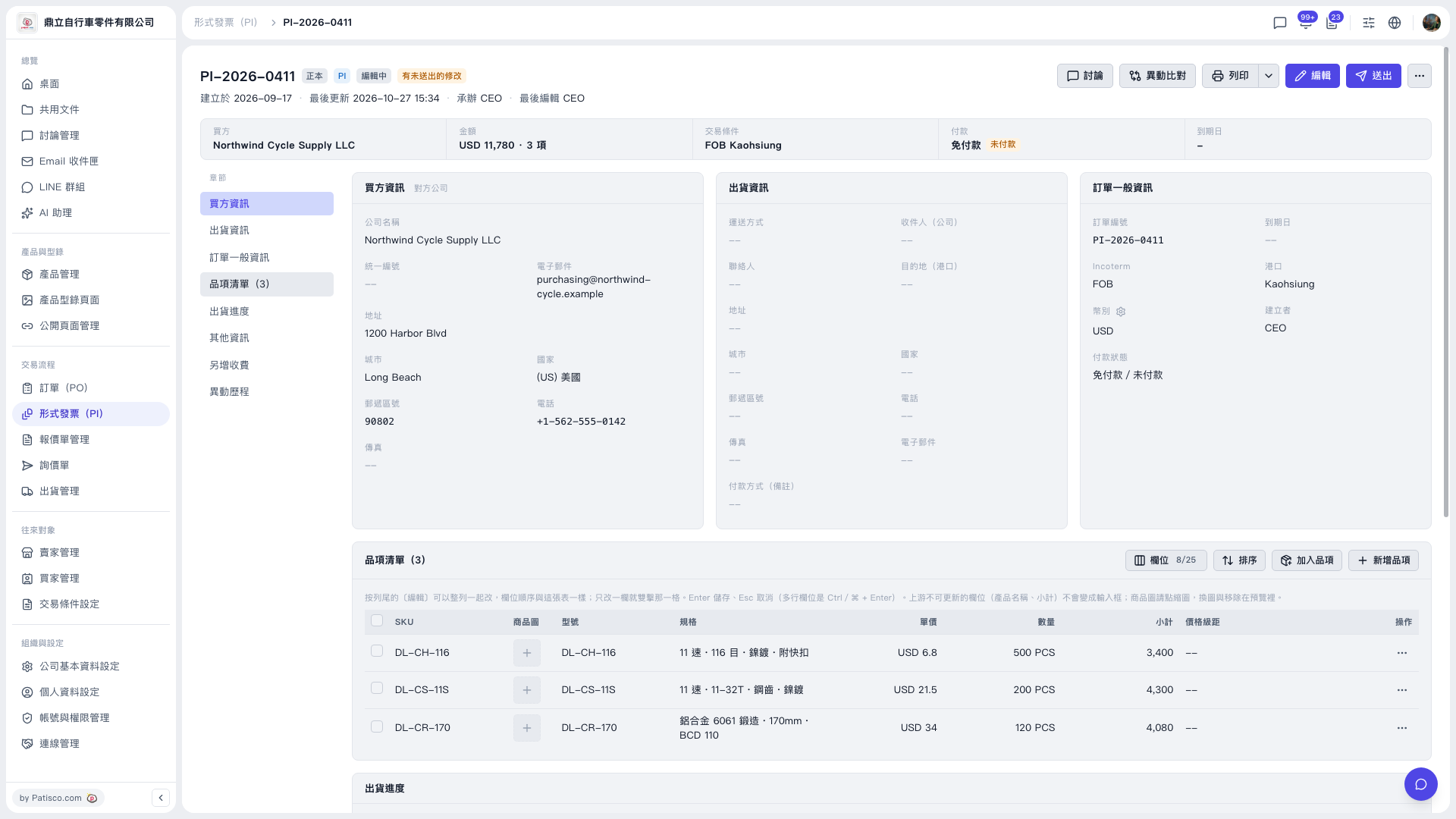 V5 新桌面版|PI-2026-0411(形式發票詳情/編輯中)