
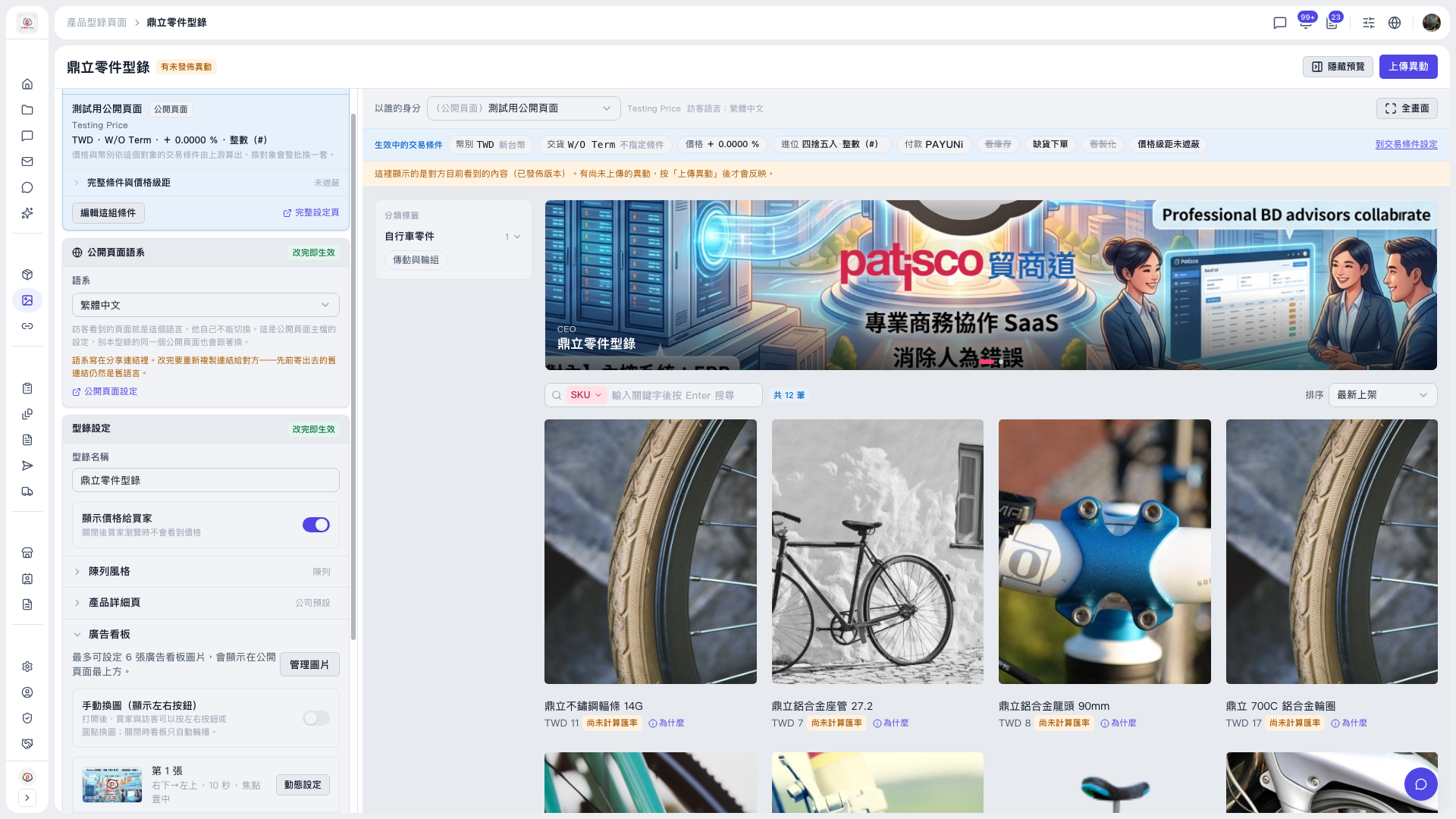
1. Open the catalog page (for example, "Dingli Parts Catalog") and find the "Banner" section in the settings panel on the left. 2. Click "Manage Images" to upload or adjust banner images, up to 6. 3. Next to image 1, click "Motion Settings" to adjust the direction, duration, and focus. For example, in the demo catalog, image 1 is "bottom-right → top-left, 10 seconds, focus centered", and image 2 is "right → left, auto duration, focus set". 4. If you want buyers to switch images themselves, turn on the "Manual image switching" toggle in the same section. Buyers can then switch images with the left/right buttons or the dots. 5. When you are done, click "Upload Changes" at the top right to publish. Before publishing, the preview area on the right still shows the previously published version.
 V5 新桌面版|鼎立零件型錄