
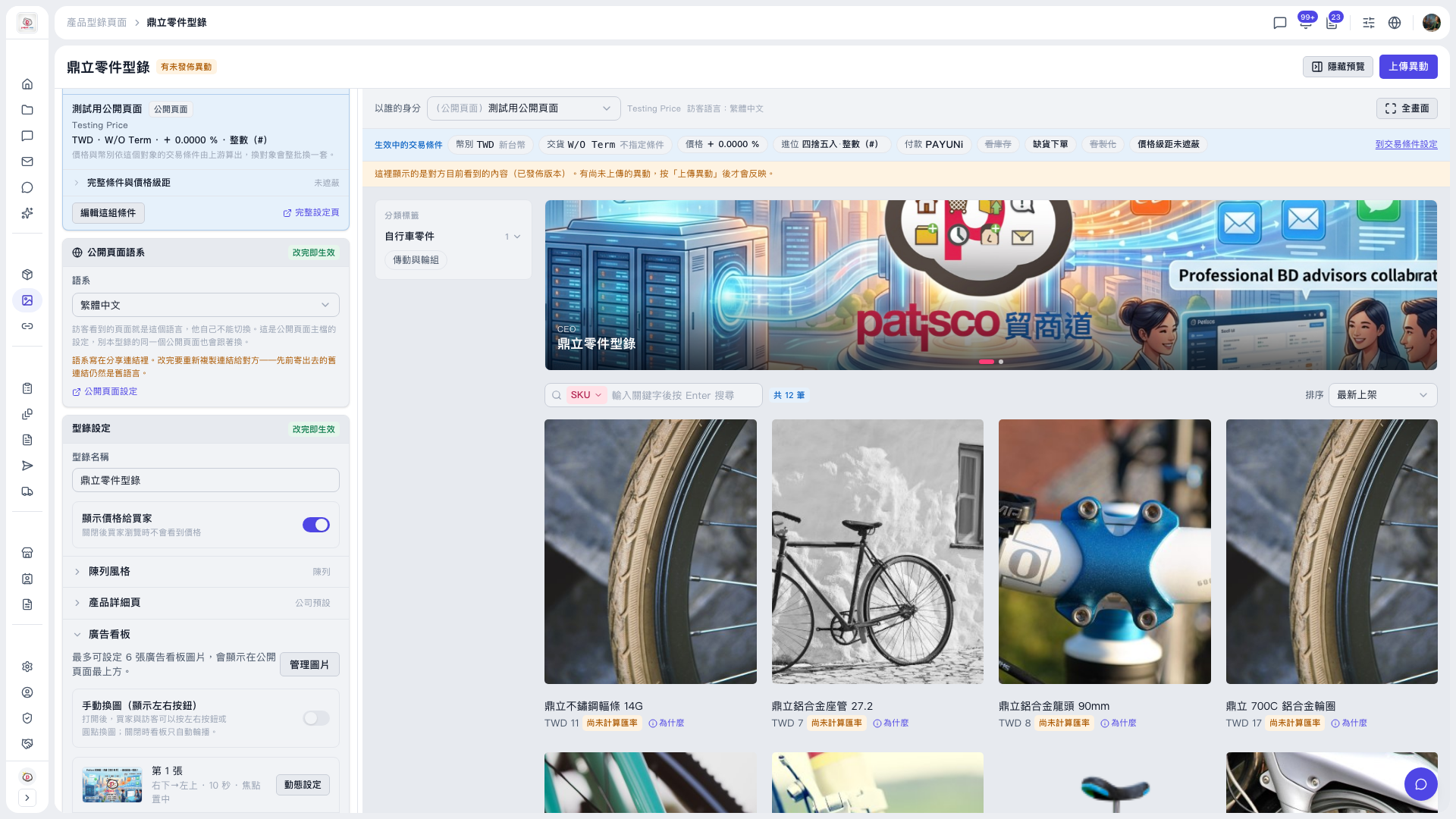
1. Open the catalog page (for example, "Dingli Parts Catalog") and find the "Banner" section in the left panel. 2. Click "Manage Images" to add or adjust banner images, up to 6. 3. In the image list, find the image you want to adjust (for example, "Image 1") and click "Motion Settings" on its right to open the motion settings dialog. 4. In the dialog, set the motion effect: movement direction, duration, and focus position. 5. Check the effect in the preview area on the right. If needed, use the "View as" dropdown above the preview to check from a different viewpoint. 6. When everything is correct, click "Upload Changes" at the top right to publish. Buyers will only see the changes after this.
Note: The motion settings of each image are independent. For example, for two banners in the same catalog, one can be set to direction brtl, 10 seconds, no focus specified, and the other to direction rl, duration unspecified, with the focus at the upper right of the image.
 V5 新桌面版|鼎立零件型錄