
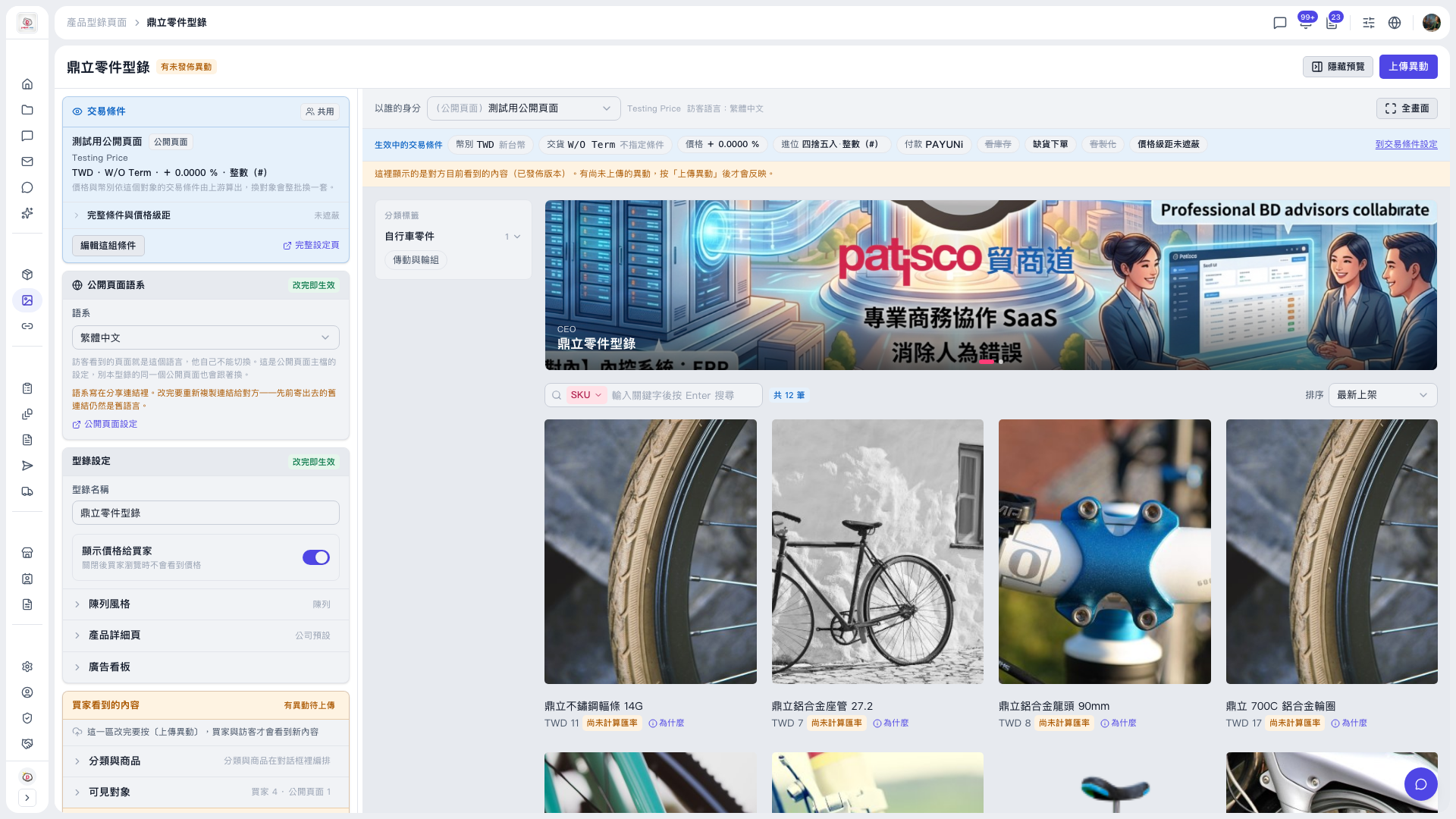
1. Open the catalog page (for example, "Dingli Parts Catalog"). The buyer preview area is on the right. 2. Use the "View as" dropdown above the preview area to switch identities (the default is "Public page"). The preview shows the catalog as that person sees it. 3. To see it larger, click "Full screen" at the top right of the preview area. 4. To find a specific product, search with the SKU search box above the product list in the preview area, and adjust the sort order (for example, "Newest"). 5. If the preview area blocks the screen, click "Hide preview" to the left of "Upload Changes" at the top right to collapse it.
Tip: At the far right of the condition bar above the preview area is "Go to Trading Condition Setting". The "Trading Conditions" card on the left also has "Edit this set of conditions" and "Full settings page", which you can use to adjust the trading conditions that apply to that person.
 V5 新桌面版|鼎立零件型錄