
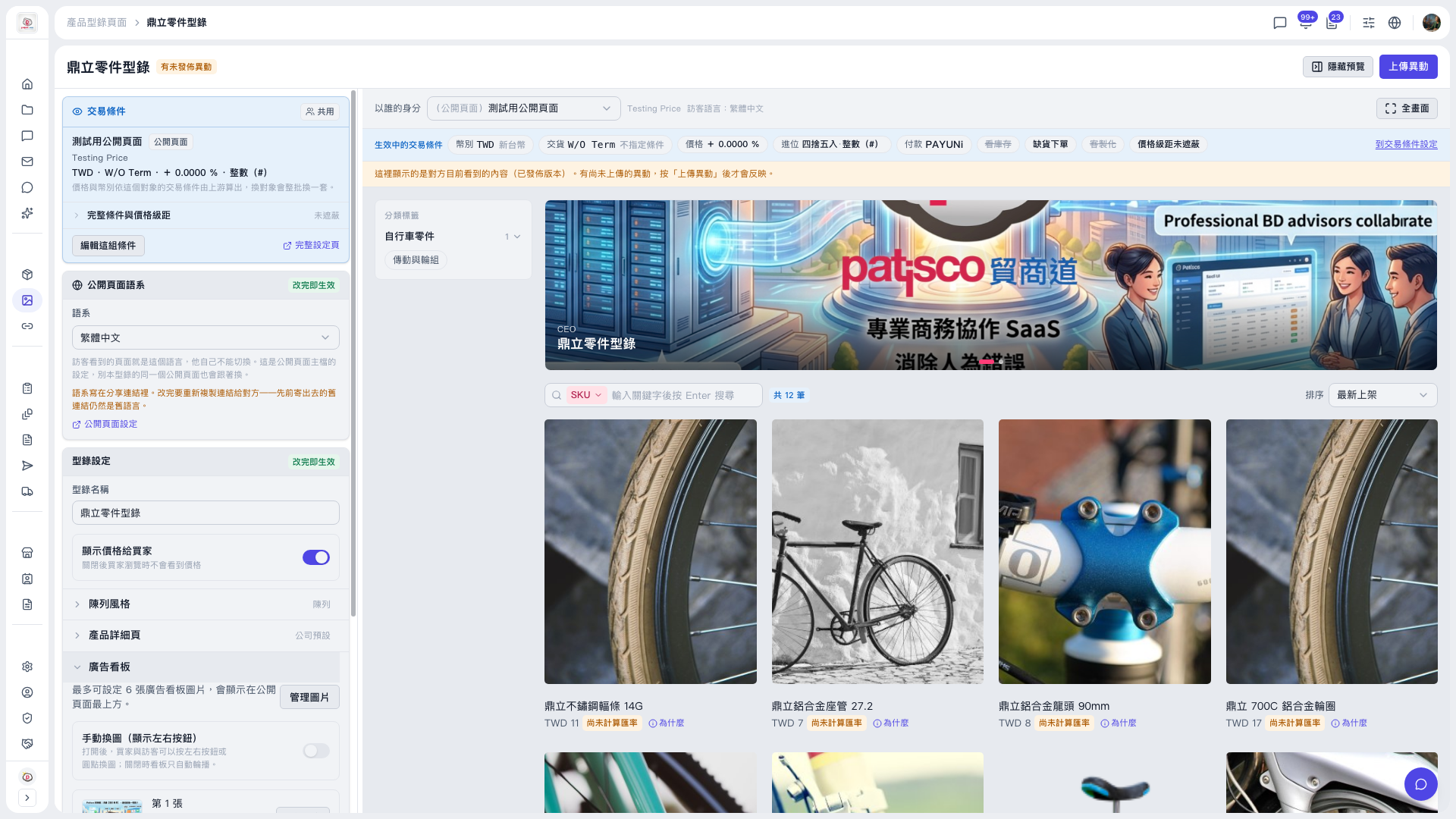
1. Open the catalog page (for example, "Dingli Parts Catalog") and scroll down the left panel to the "Banner" section. 2. If you have not added images yet, first click "Manage Images" to upload or adjust banner images, up to 6. 3. Find the "Manual image switching (show left/right buttons)" toggle and turn it on. Once on, buyers and visitors can switch images manually with the left/right buttons or the dots. 4. When it is off, the banner rotates automatically. 5. Check the effect in the preview area on the right. If it looks good, click "Upload Changes" at the top right to publish; they will then see the latest content.
Note: In the demo catalog, for example, the banner has 2 images and the toggle is off by default. When it is off, the preview shows only the 2 images rotating, with no left/right buttons, and the 2 dots below are only indicators and cannot be clicked.
 V5 新桌面版|鼎立零件型錄