
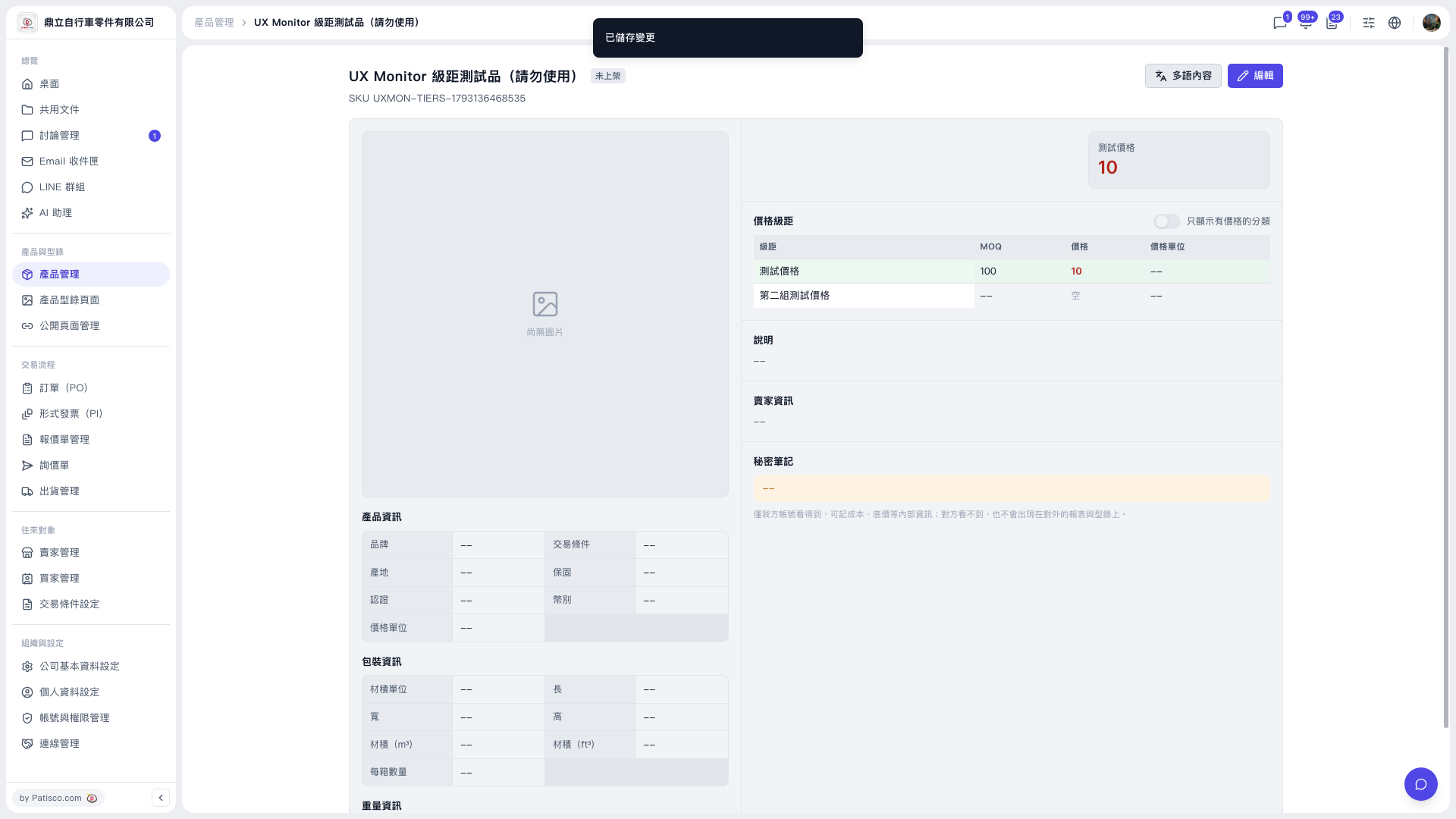
1. In the left sidebar, click "Product Management" under "Products & Catalogs" to open the product list. 2. Select the product you want to modify to enter the product detail page. 3. Click the "Edit" button at the upper right (to the right of the page title) to enter edit mode. 4. In the "Price Tiers" section, find the second tier and delete it. 5. Check that the "MOQ", "Price" and "Price unit" of the remaining tiers are filled in correctly. 6. Save the changes. The "Changes saved" message appears at the top of the screen. 7. Return to the detail page and confirm that the price tier table contains only the expected tiers.
Test result: after deleting the second tier and saving, the tiers returned by the backend contained only one (MOQ 100, price 10), as expected.
 V5 新桌面版|UX Monitor 級距測試品(請勿使用)