
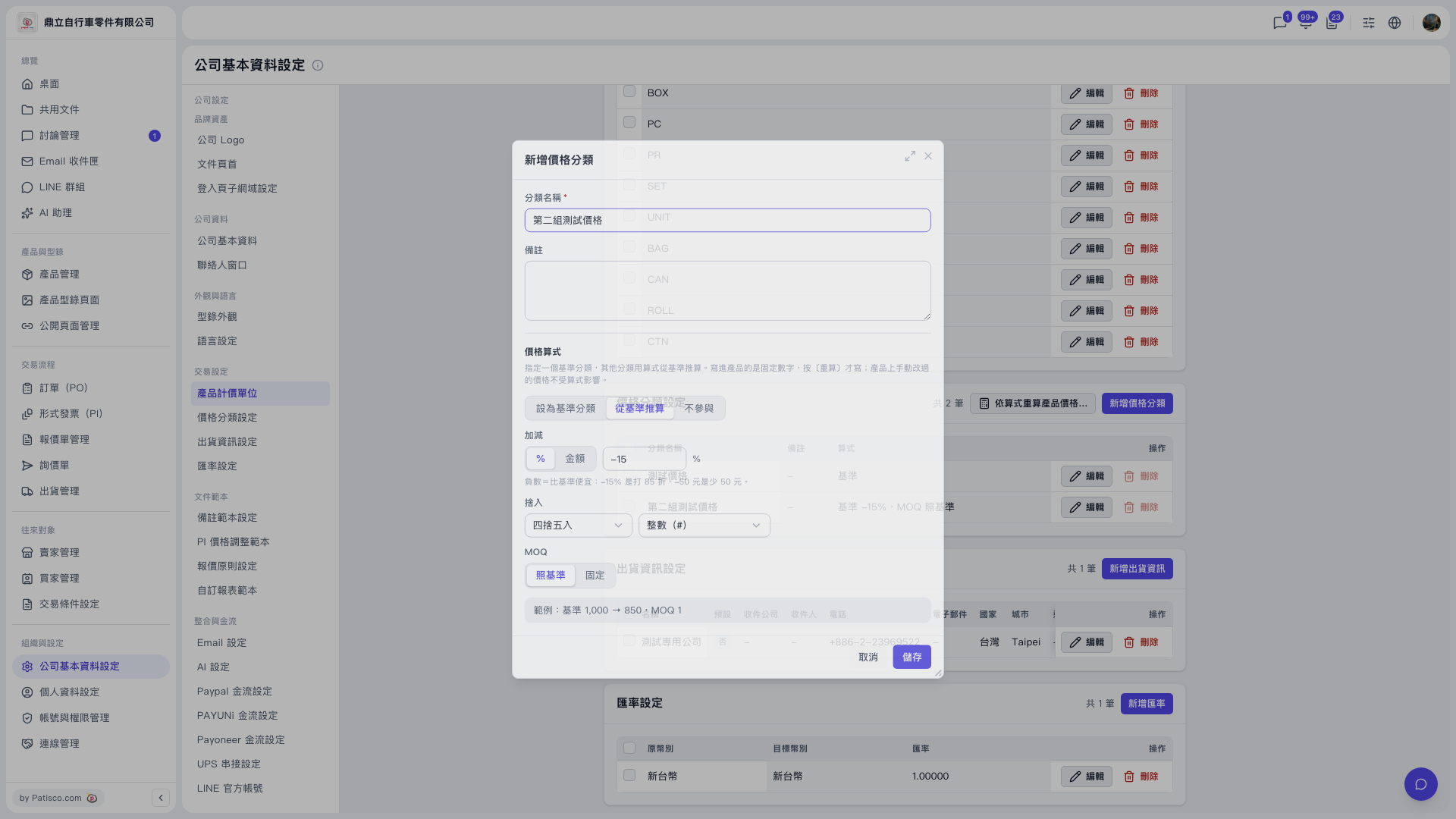
1. Go to "Company Profile Settings" and switch to the "Price Category Settings" section. 2. Click "Add price category" at the upper right of the section. 3. Enter a name in "Category name" (required), for example "Second test price", and fill in "Remarks" if needed. 4. For "Price formula", choose "Derive from base". 5. For "Adjustment", choose "%" and enter -15 as the value. A negative number means cheaper than the base, so -15% means 15% off (85% of the base price). 6. For "Rounding", choose "Round half up" and set the decimal places to "Integer (#)". 7. For "MOQ", choose "Same as base". 8. Check the result against the example at the bottom of the dialog: base 1,000 → 850, MOQ 1. 9. If everything looks right, click "Save" at the lower right; to discard, click "Cancel".
Note: If you want to adjust by a fixed amount instead of a percentage, change "Adjustment" to "Amount".
 V5 新桌面版|公司基本資料設定