
1. On the Product Management page, click "Import" at the top right, or open the bulk create products dialog, choose the "From Excel file" tab and upload the file. 2. In Step 2, "Column mapping", look at "Your column", "Sample value" and "Map to system field" for each row in the table. 3. Look at the "Status" column: "Name matched" means the automatic mapping succeeded; for rows marked "Guessed" or "Not matched", you need to check them yourself. 4. For any wrong column, use the "Map to system field" dropdown on that row to choose the correct system field (for example SKU, Product name, Currency, MSRP, Tier 1 unit price, Tier 1 MOQ). For columns you don't need, choose "Do not import". 5. Confirm that the unit price and MOQ of the prices are mapped correctly (if MOQ is not filled in, 1 will be used). 6. When you have finished checking, click "Next" at the bottom right of the dialog to go to Step 3, "Value mapping". To go back and change the file, click "Back". If you don't want to import, click "Cancel".
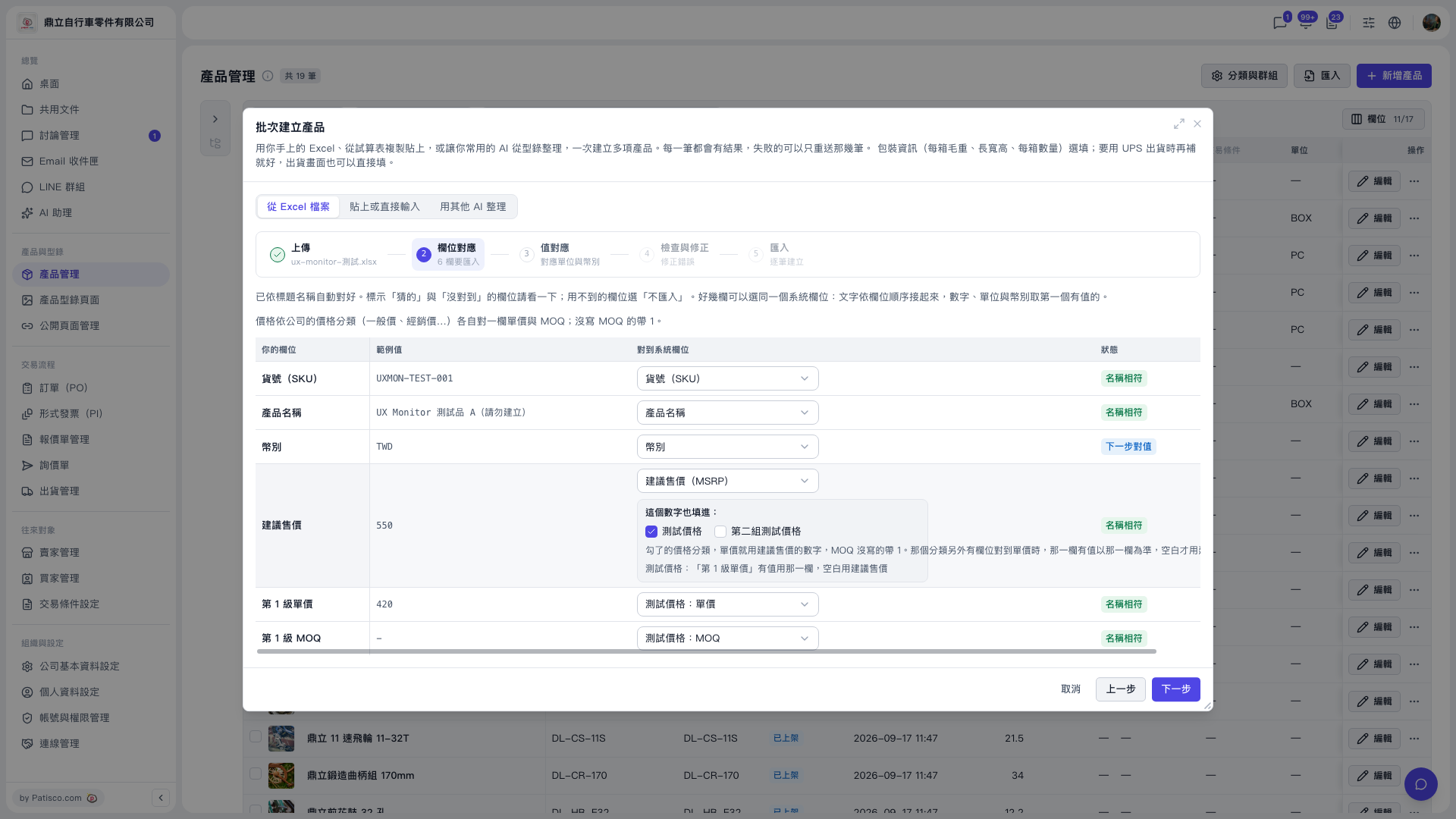 V5 新桌面版|產品管理(批次建立產品 - 欄位對應步驟)