
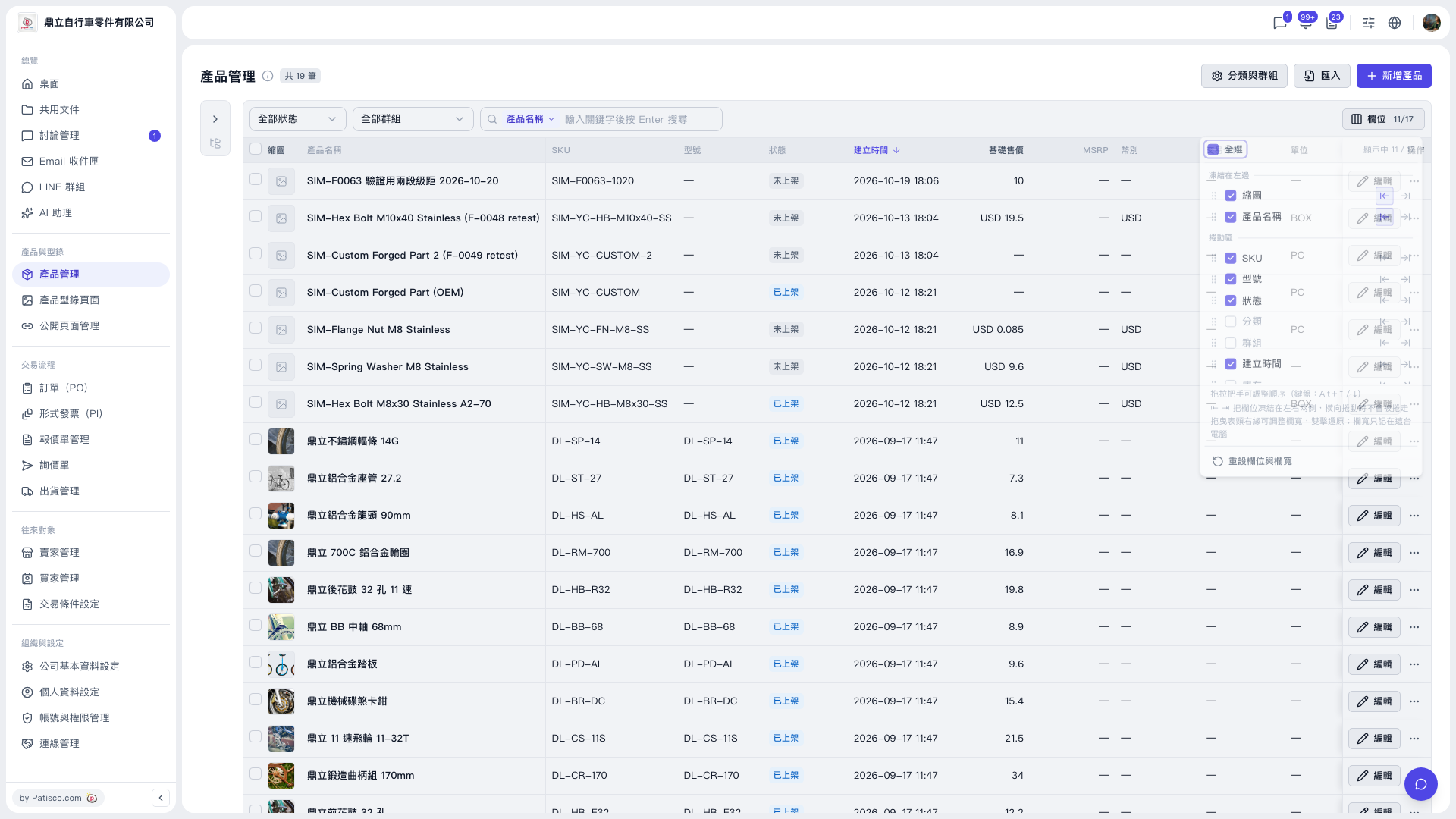
1. In the left sidebar, click "Product Management" under "Products & Catalog". 2. Click the "Columns 11/17" button on the right side of the table toolbar to open the column panel (11/17 means 11 columns are currently shown out of 17 available). 3. In the panel, check or uncheck the columns you want to display. The following are checked by default: Thumbnail, Product name, SKU, Model, Status, Created at, Base price, MSRP, Currency, Trading Condition, Unit. 4. Columns that are not checked yet and can be added are: Category, Group, Stock, Created by, Last modified, Listed/Unlisted time. 5. To change the order, drag the handle on the left of a column. To pin a column, use the freeze button. 6. Once you check them, the table shows the columns you selected.
 V5 新桌面版|產品管理