
1. On the Proforma Invoice details page, click "Edit" at the top right to enter edit mode. 2. Go to "Item List". To bring in items from product data, click "Add Items" on the right of the title bar. To add a row manually, click "New Item". 3. To work on a specific item, click the "⋯" at the far right of that row to open the action menu. 4. To adjust which columns are displayed, click "Columns 8/25". To change the order, click "Sort". 5. To check what was changed, click "Diff view" at the top right to see the differences between versions. 6. Once you have confirmed everything is correct, click "Send" at the top right to send the unsent changes to the buyer.
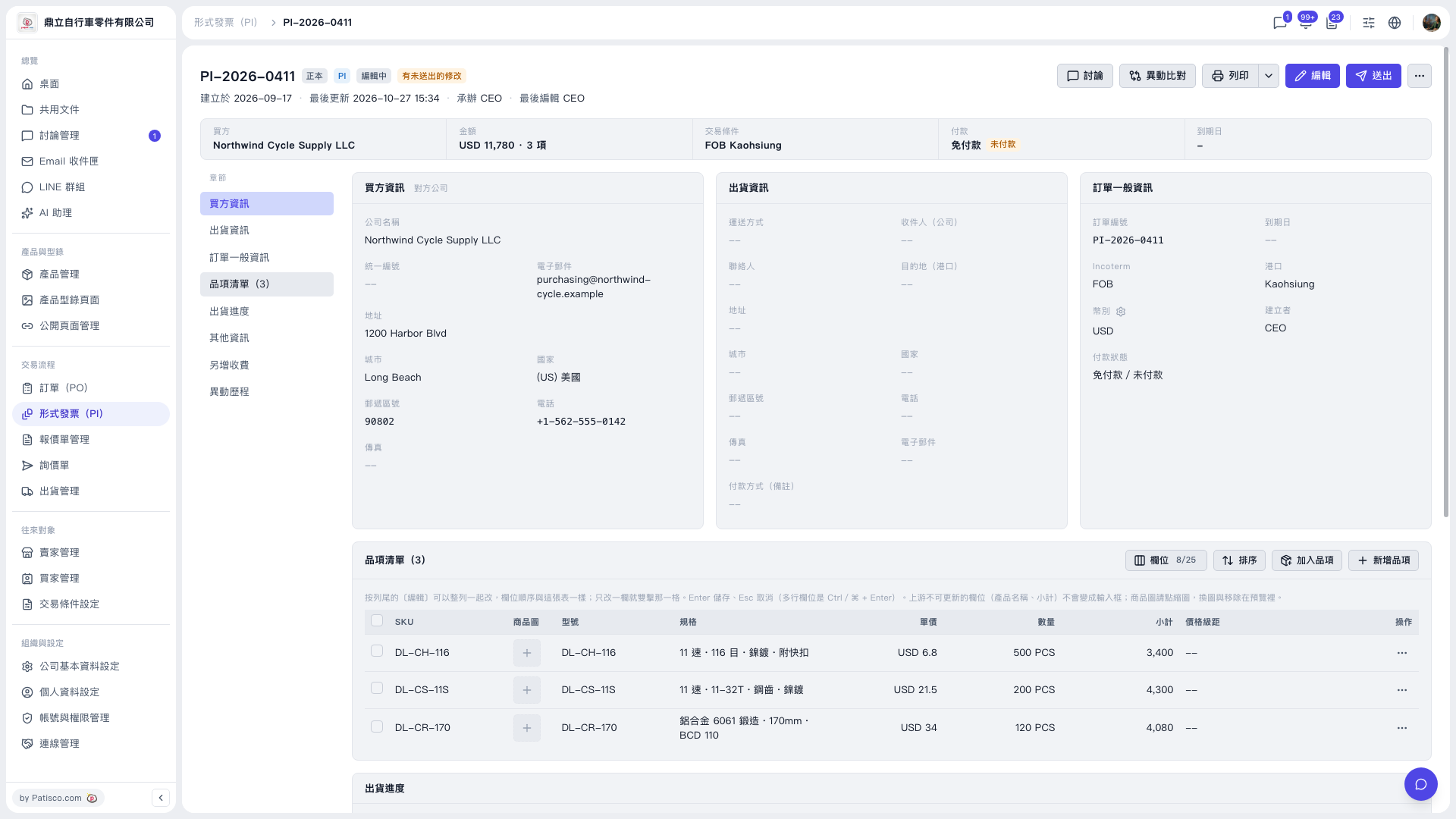 V5 新桌面版|PI-2026-0411(形式發票詳情)