
1. In the section navigation on the left, click "Item List", or scroll straight to that section. 2. To pick items from the product library, click "Add Items" at the top right of the section. To add a row manually, click "New Item". 3. To edit or delete an item, click the "⋯" at the far right of its row. 4. To change the order, click "Sort". 5. To change which columns the table shows, click "Columns 8/25" and tick the ones you want. 6. When you're done, remember to click "Submit" at the top right.
You can ask the AI assistant: "Get payment link". The AI will reply: "Not available (it may already be paid or archived)", which means this PI has no usable payment link at the moment. You can first check the "Payment Status" on the page.
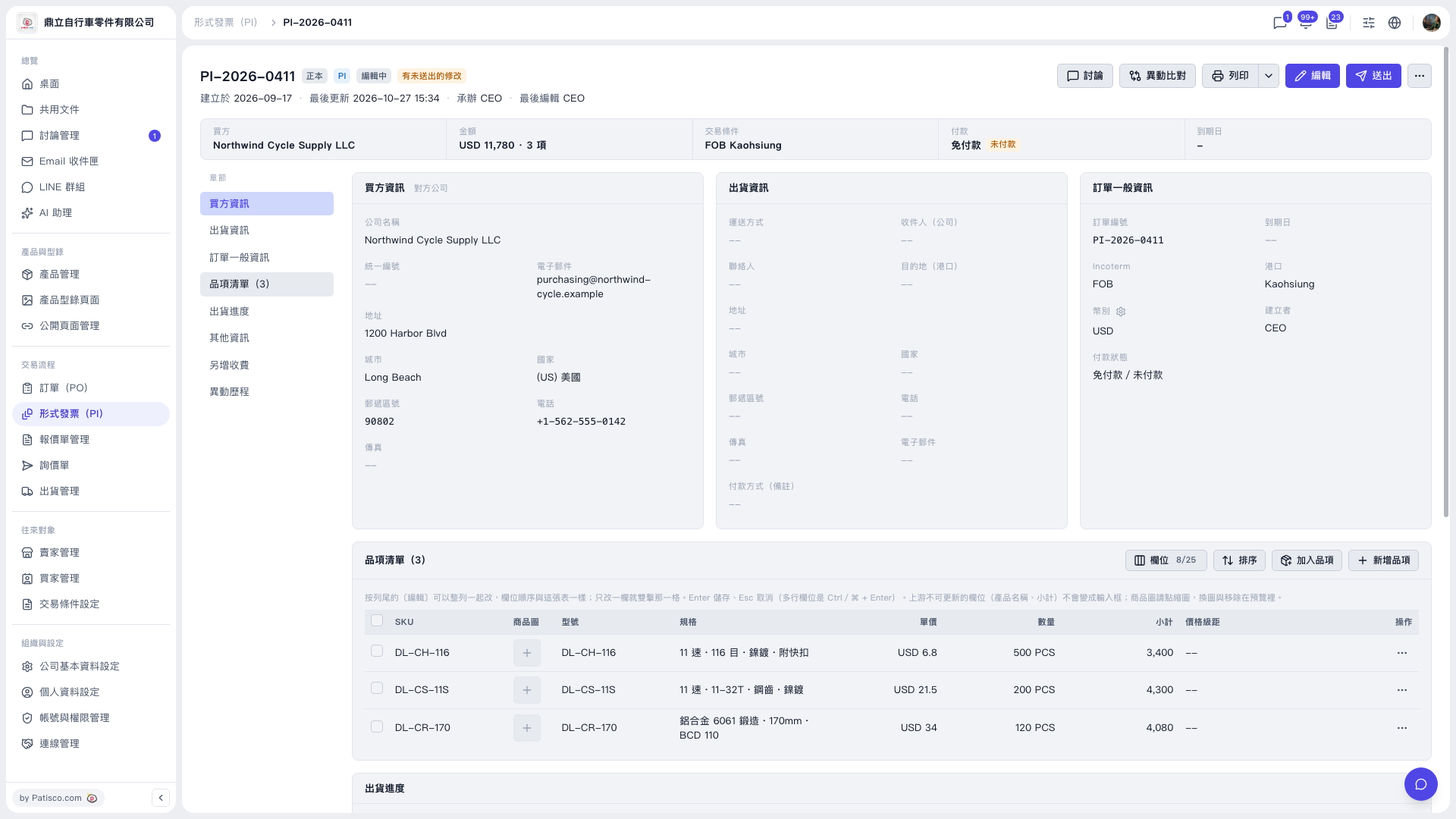 V5 新桌面版|PI-2026-0411(形式發票詳情/編輯中)