
1. Open the catalog's edit page (for example "Dingli Parts Catalog"), then scroll to the "Banner" section in the left panel and expand it. 2. If you haven't added images yet or want to adjust them, click "Manage Images" on the right side of the section to add or adjust banner images (up to 6). 3. On the right side of the banner you want to adjust (for example the 1st one), click "Motion Settings" to open the motion settings window. 4. In the window, set the movement direction, duration in seconds, and focus position. 5. Check the motion effect on the banner in the preview area on the right. If the preview area is collapsed, click "Hide preview" at the top right to expand it, or click "Full screen" at the top right of the preview area to enlarge it. 6. When everything looks fine, click "Upload Changes" at the top right to save and apply.
Note: Each banner can be set individually. For example, the 1st can have a direction and duration, while the 2nd can have only a direction and a focus position.
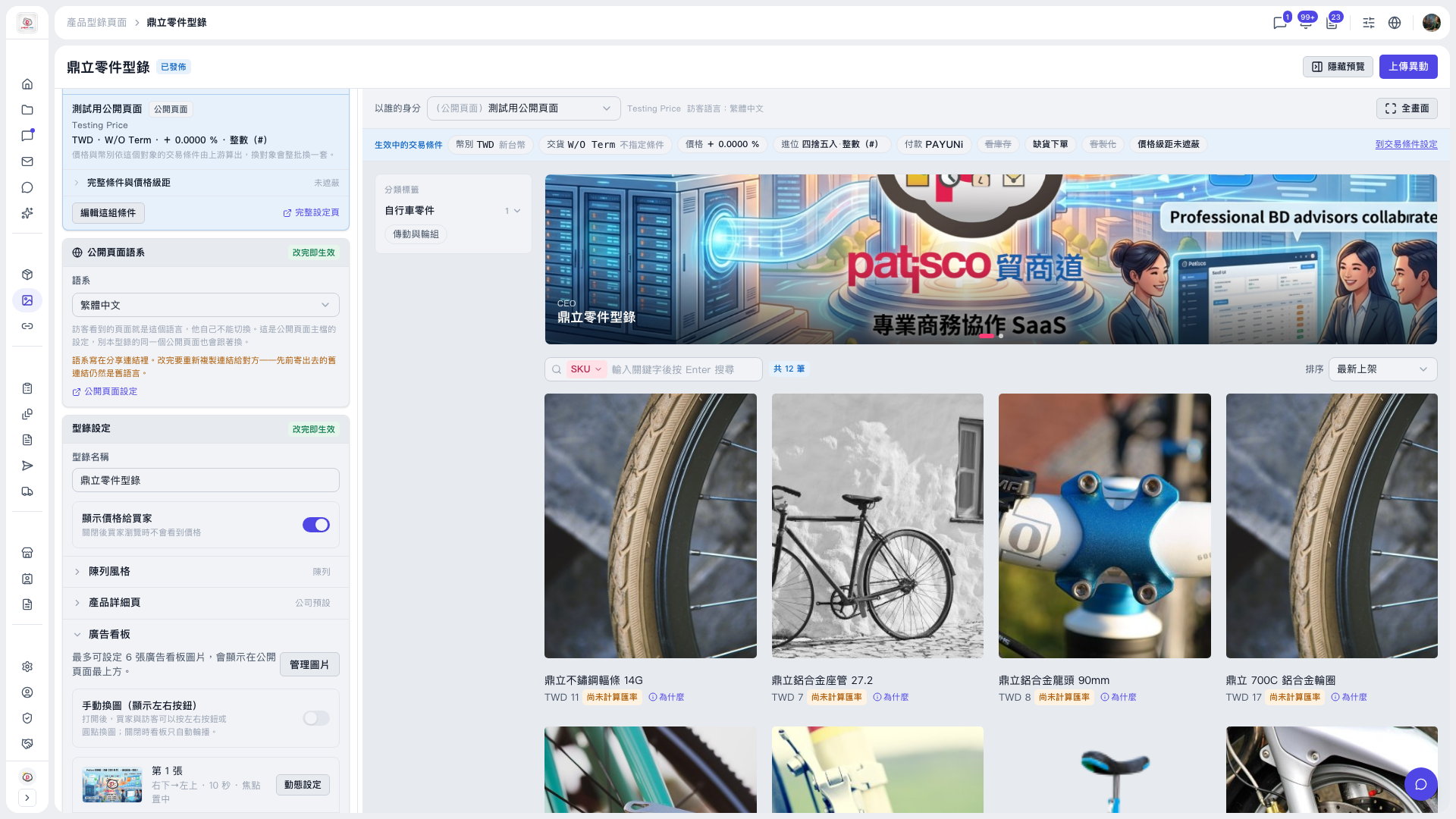 V5 新桌面版|鼎立零件型錄(產品型錄頁面編輯,已發佈)